How to Add Two-Factor Authentication
Enable two-factor authentication to secure your StayPut account.
Add an authenticator-app code as a second sign-in step, on top of your password.
Two-factor authentication applies to accounts with a password. If you signed up with Google only, you won’t see this section on your Account page — Google’s own sign-in security applies instead.
Open Your Account Page
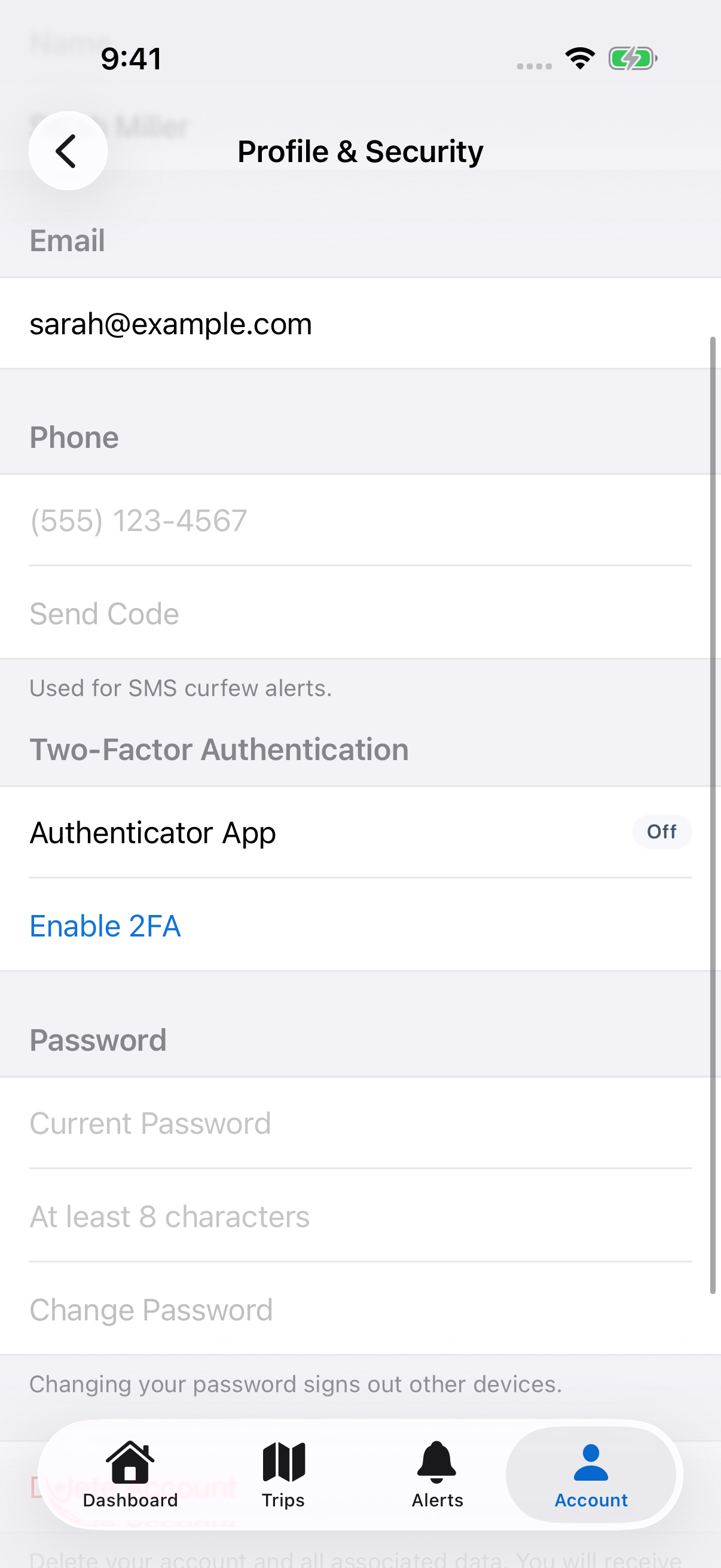
Sign in and select Account in the sidebar, then find the Two-Factor Authentication section. Select Enable 2FA.
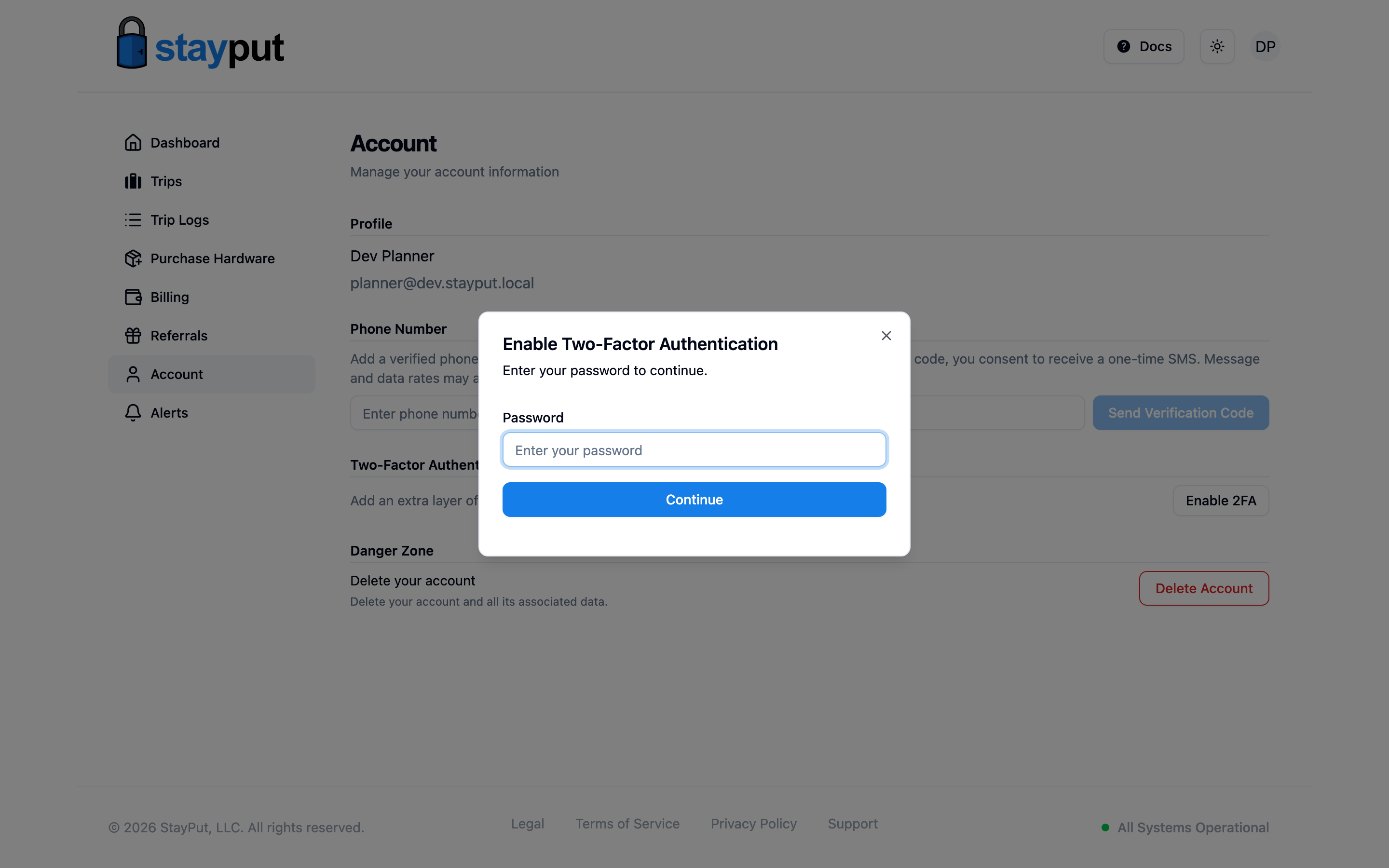
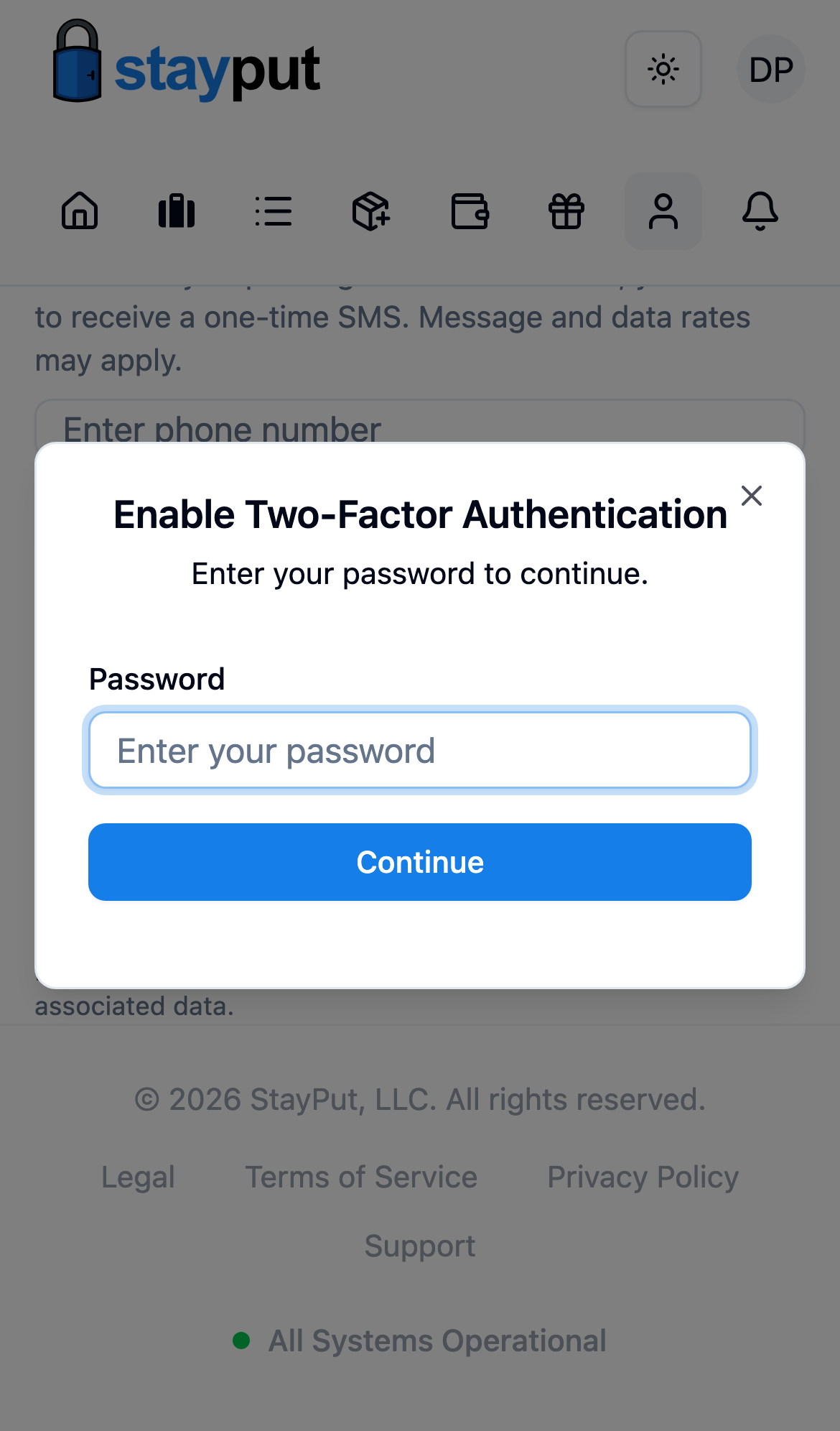
Enter Your Password
StayPut asks for your password before starting setup. Enter it and select Continue.
Scan the QR Code
Scan the QR code with an authenticator app such as Google Authenticator or Authy. Save the backup codes shown below it somewhere safe — you can select Copy backup codes to copy them.
Enter the 6-Digit Code
Enter the current 6-digit code from your authenticator app and select Verify and enable.
Each backup code works once and lets you sign in if you lose access to your authenticator app. Store them somewhere safe before closing the dialog — StayPut only shows them again if you generate a new set.
Turning It Off
In the same section, select Disable 2FA, enter your password, and select Disable 2FA again to confirm. Your account then signs in with just your password.