How to Tell if My Gateway Is Connected
Check gateway connection status in the dashboard and on-site.
The dashboard shows a live connection badge for each gateway assigned to a trip, so you can confirm the hub is online before curfew.
Gateway status appears on the trip’s Overview tab, which is available on trip days and unlocks once monitoring is paid for the trip (or a purchase order has been received). Before then, the Overview shows a billing prompt instead of device status.
Open the Trip’s Overview Tab
Go to Trips and open the trip. On trip days, Overview is the first tab.
Check the Badge
At the top of the Overview, each gateway’s serial number shows an Online badge with Last contact and how long ago, or Not Reporting once it has been silent for about 16 minutes — or Never connected if it has not checked in yet.
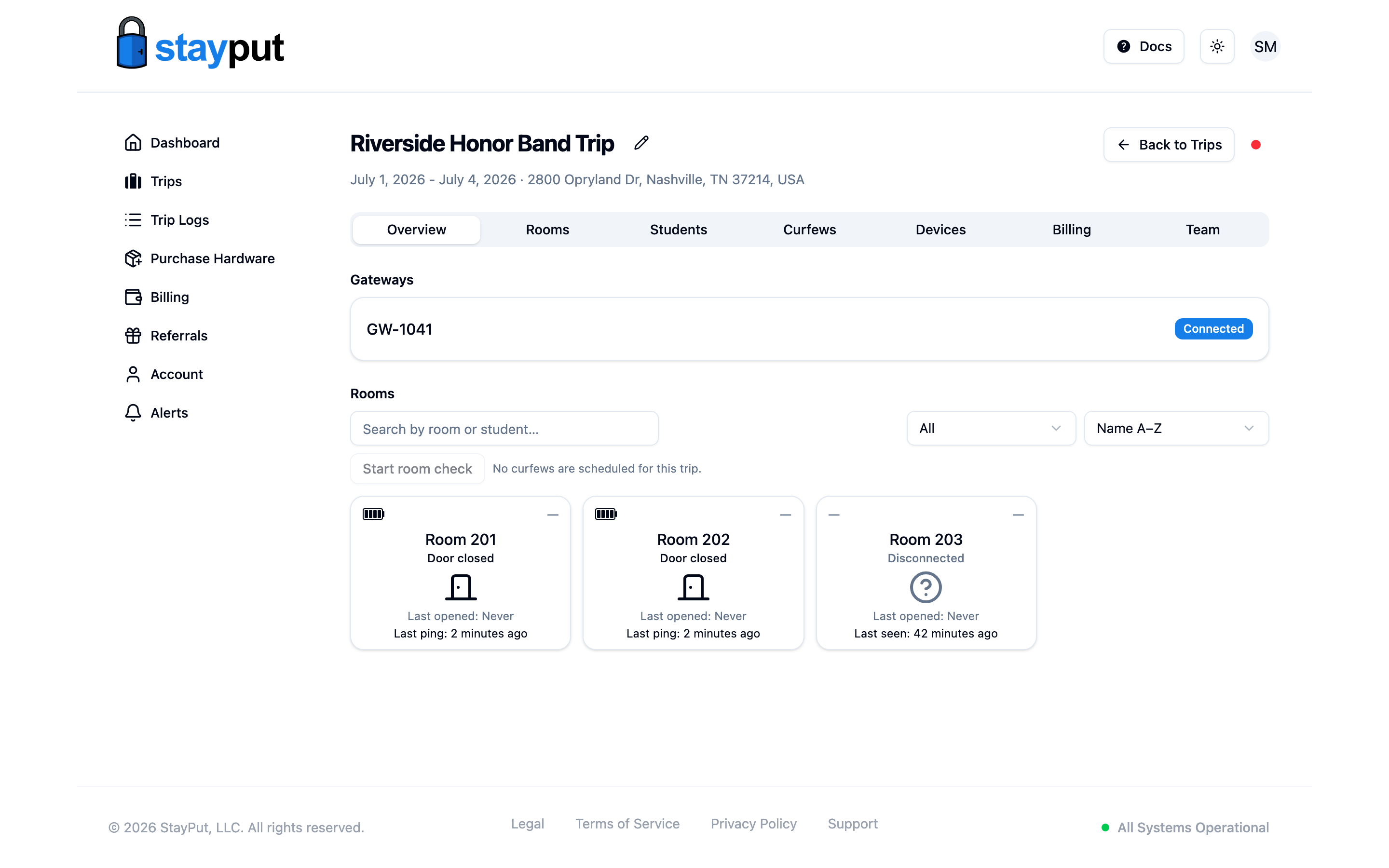
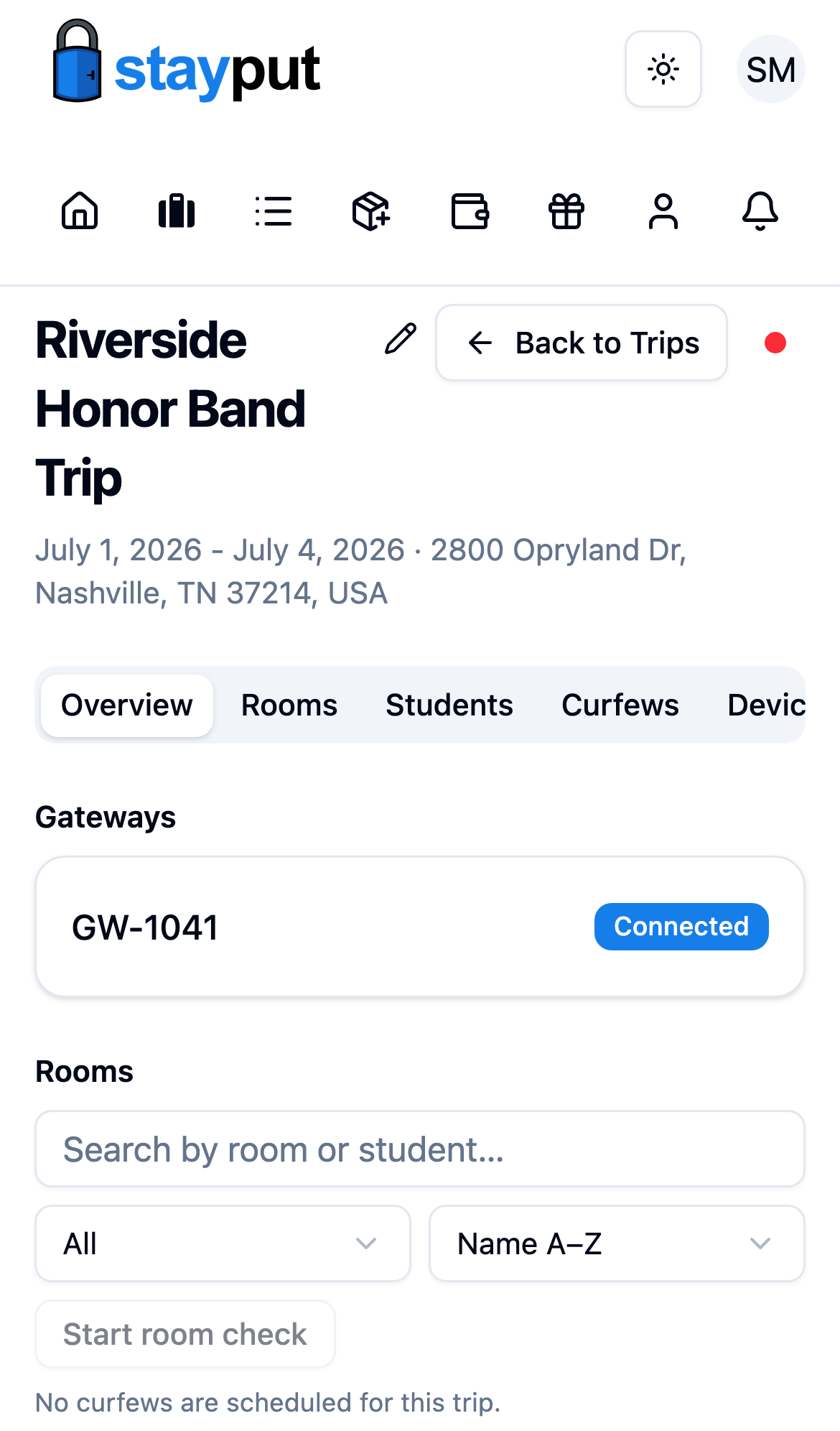
The badge updates automatically from the gateway’s cellular connection — you don’t need to refresh or re-pair anything.
If the Gateway Shows Not Reporting
- Confirm the gateway is plugged in and the outlet has power (some hotel outlets are switched).
- Move the gateway to a different spot — cellular signal can be weak in interior hallways; nearer a window often helps.
- Give it a few minutes after powering on or moving it, then check the badge again.
- Still not reporting? Contact support with the gateway’s serial number.