How to Use Hardware Purchased with a Different Account
Transfer or use hardware that was purchased under another StayPut account.
Hardware is not locked to the account that bought it. If your school or a colleague purchased the gateway and door sensors under another StayPut account, you can still assign them to your own trip — you just enter the serial numbers manually.
The Add a gateway… and Select sensor… pickers on a trip’s Hardware tab only list hardware purchased with your own account. Hardware bought under a different account won’t appear there, but the manual serial-number fields accept any StayPut device.
Collect the Serial Numbers
Find the serial number printed on the gateway and on each door sensor you plan to use.
Open Your Trip’s Hardware Tab
Go to Trips, open your trip, and select the Hardware tab.
Enter the Serial Numbers
Under Gateways, type the gateway’s serial number into the Gateway serial number field and the last 6 characters of its EUI (printed on the device label) into the Last 6 of EUI field, then select Assign. For each room under Door Sensors, do the same in the Sensor serial number and Last 6 of EUI fields and select Assign.
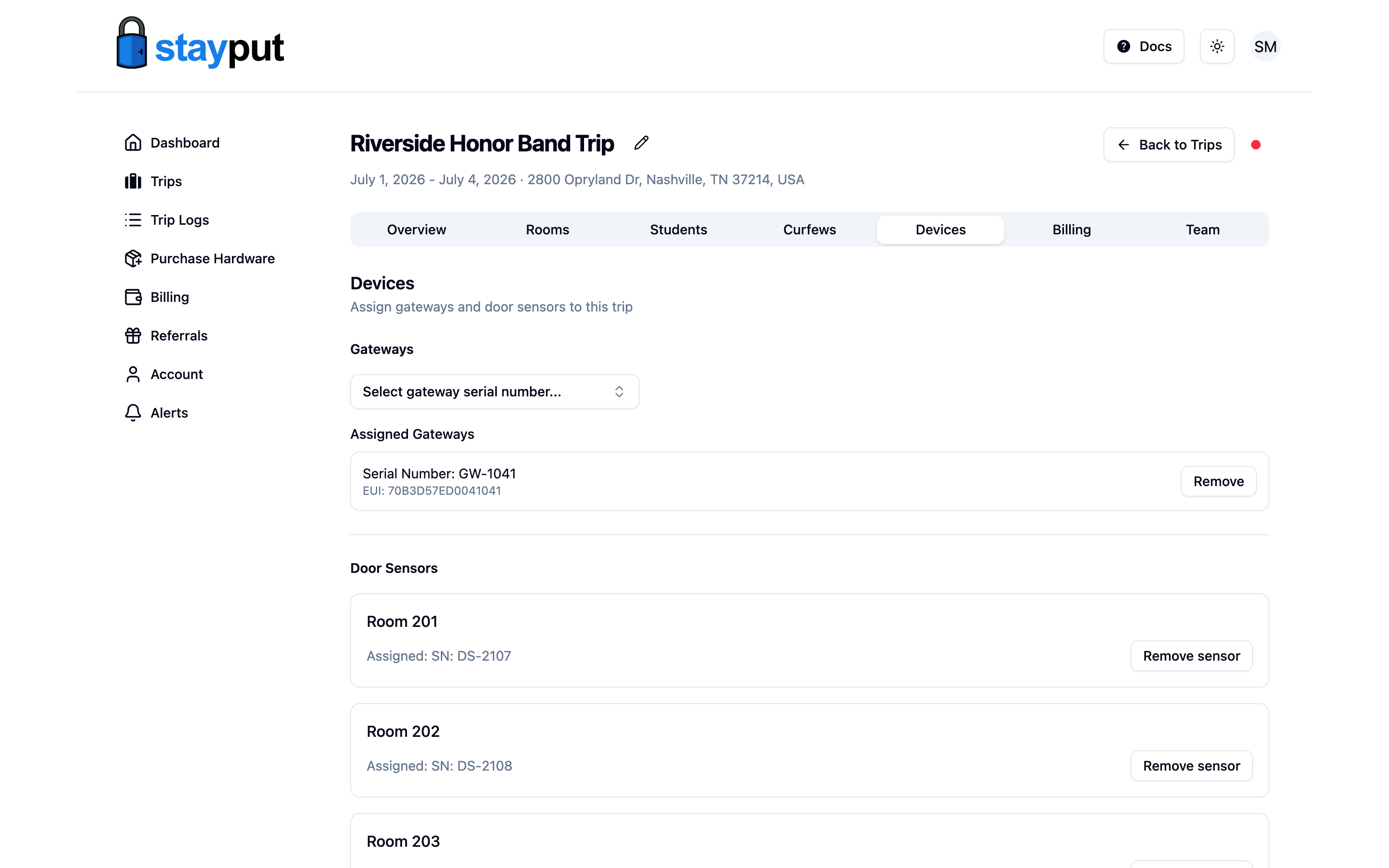
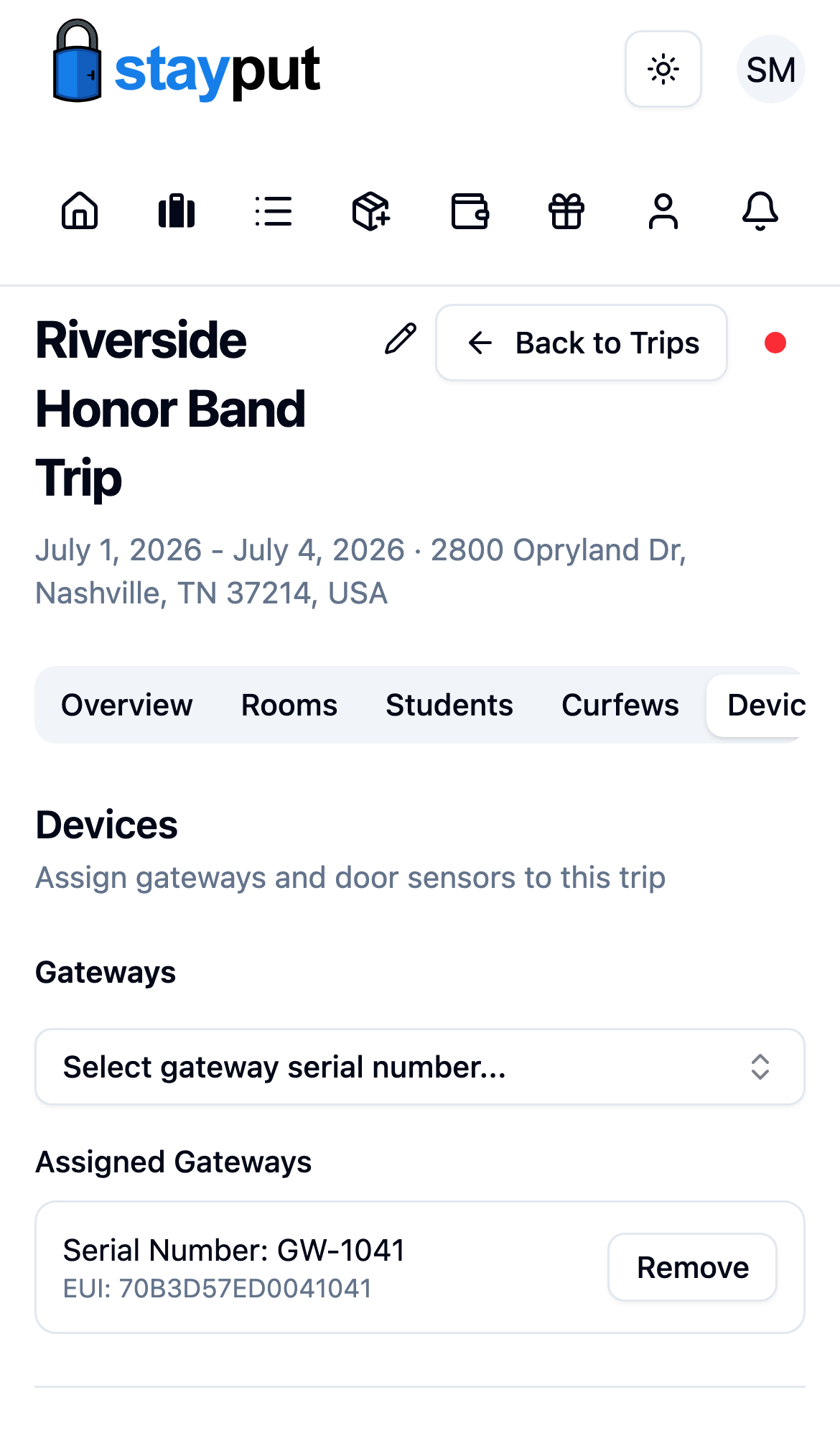
If a dropdown is shown instead of a text field (because your account also owns unassigned hardware of that type), the manual field is not available for that section — assign your own device from the dropdown, or remove it first.
Coordinate with the hardware’s owner before you use it. StayPut does not stop two overlapping trips from assigning the same device, and a sensor can only physically watch one door — double-booking it will produce confusing status and alerts.
Purchases stay tied to the buying account: the devices will still appear in the purchaser’s dropdowns, not yours, on future trips. There is currently no self-service way to transfer ownership between accounts.