Delete a Trip
Remove a trip and understand what data is deleted.
Deleting a trip permanently removes it and everything on it — rooms, students, curfews, and the room assignment document. There’s no undo, so use this for trips created by mistake, not for trips that already happened (past trips stay in your account as a record).
Only the trip owner can delete a trip, and only before its invoice is paid or a purchase order is finalized. Once hardware monitoring is paid for, the trip can no longer be deleted.
Open the Trip
Go to Trips and select the trip you want to remove.
Select Delete Trip
Select the … (Trip Actions) menu at the top right of the trip page, then choose Delete Trip.
Review What Will Be Deleted
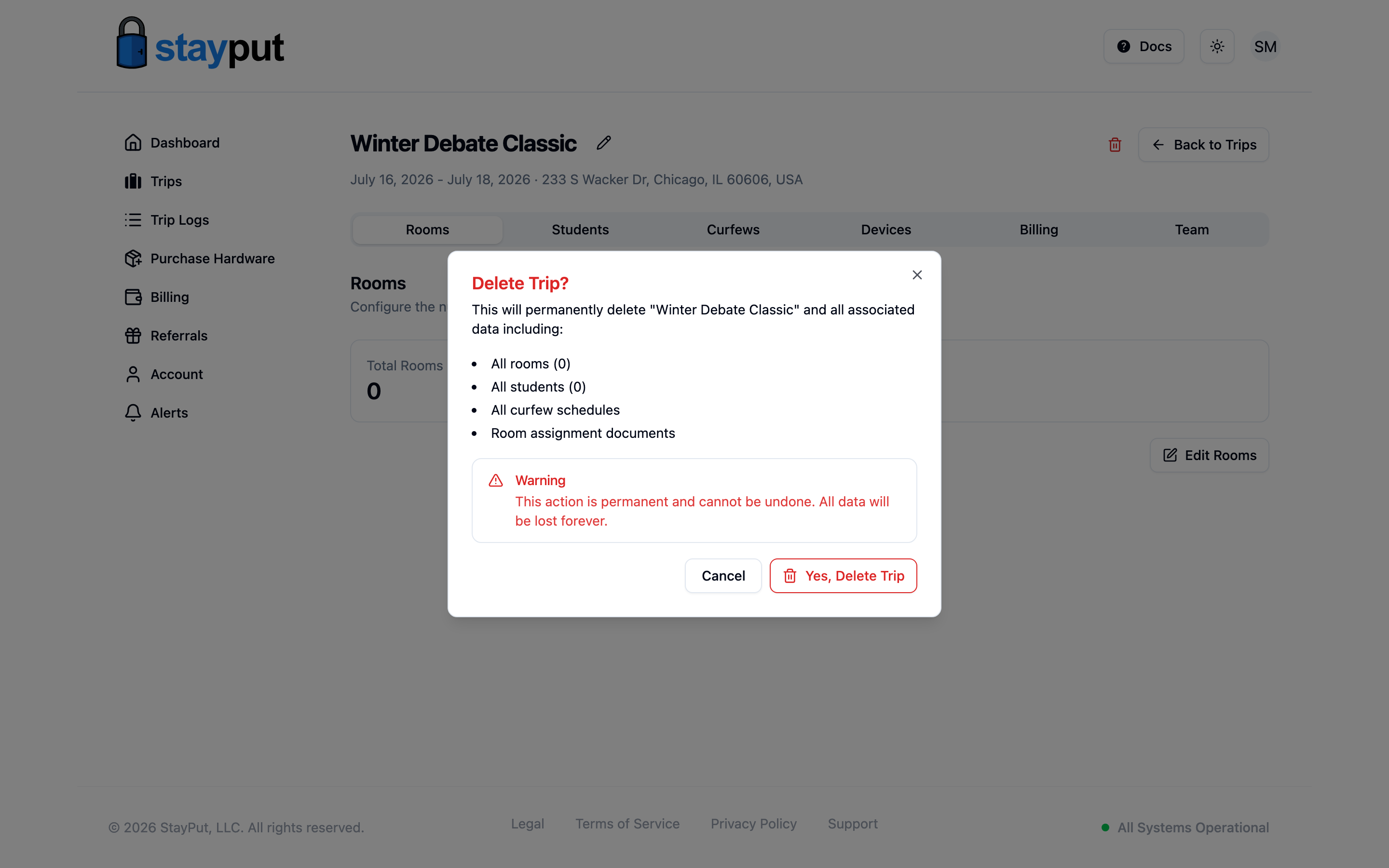
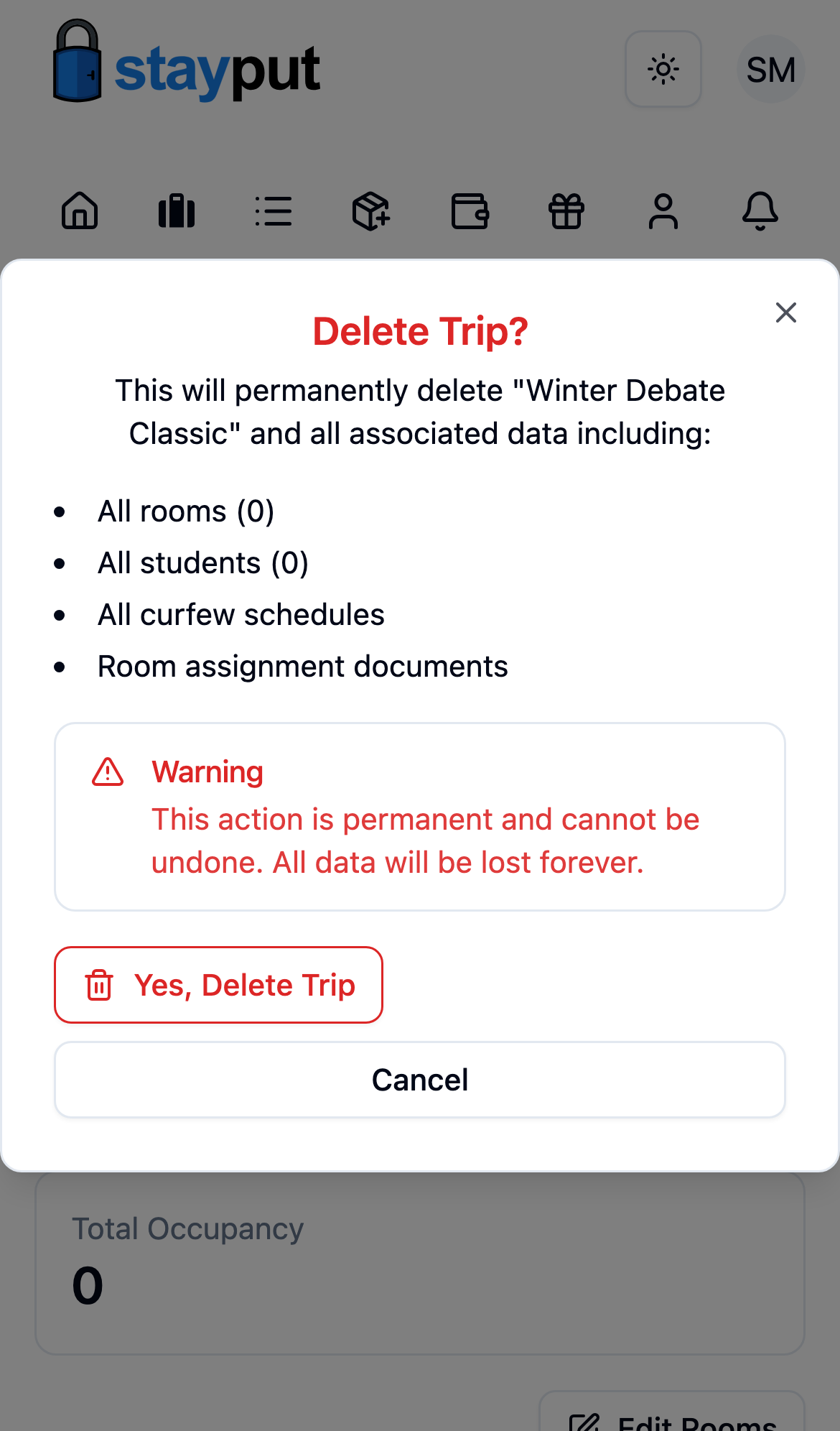
The confirmation dialog lists everything that goes with the trip: all rooms, all students, curfew schedules, the room assignment document, and — if the trip has one — its quote.
Confirm
Select Yes, Delete Trip. You’re returned to the Trips list, and the trip is gone for good.
Once you confirm, the trip and all its data are permanently deleted. Double-check you have the right trip before confirming.