How to Use the Import Student Excel
Bulk import students and room assignments using the StayPut Excel template.
For trips with a lot of students, or when you already keep a roster in a spreadsheet, use the Excel template to set up all your rooms and students at once instead of adding them one by one.
Uploading a file overwrites all rooms and students currently on the trip with what’s in the spreadsheet. Review the import preview carefully before confirming — it can’t be undone.
Open the Excel Import Panel
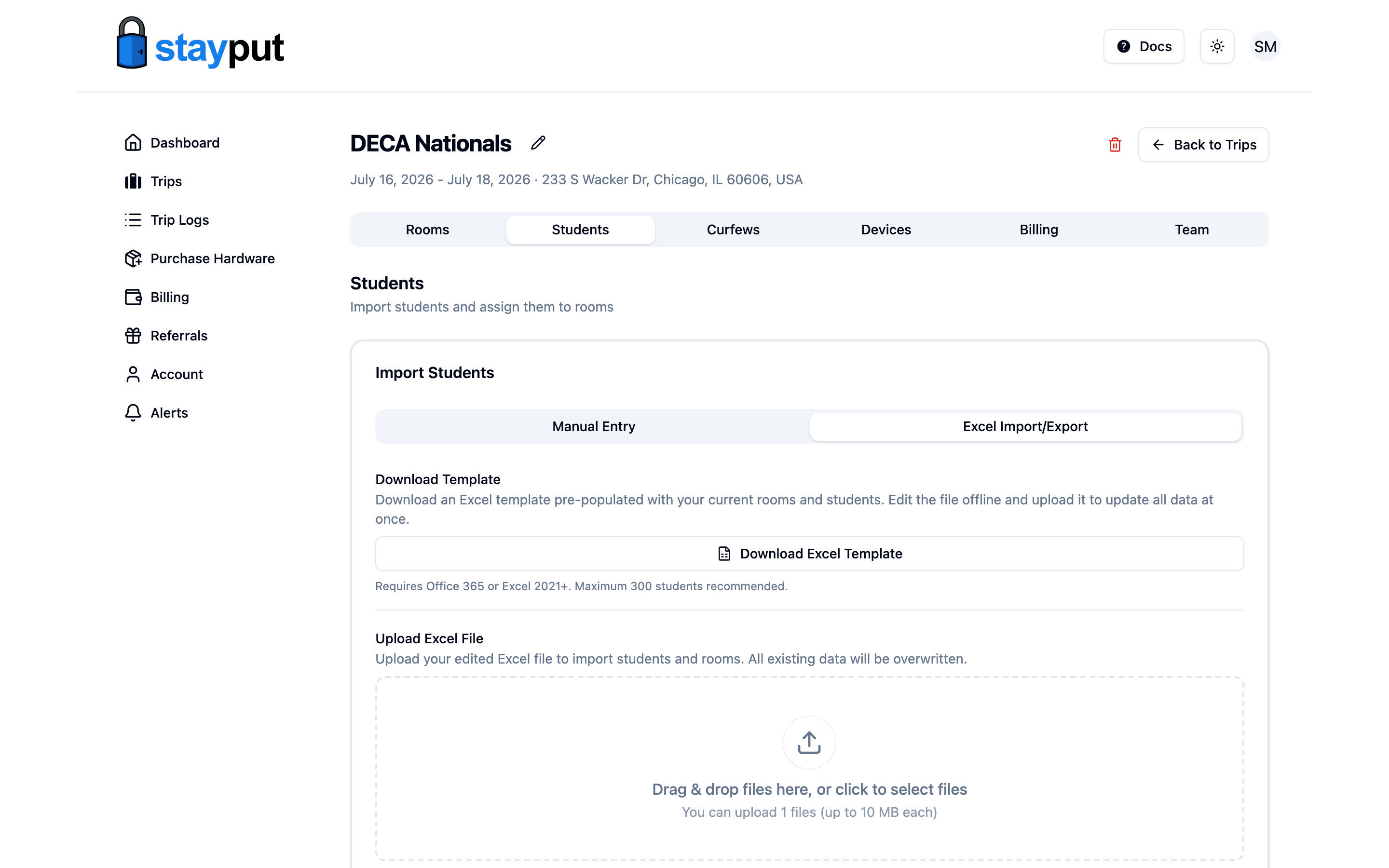
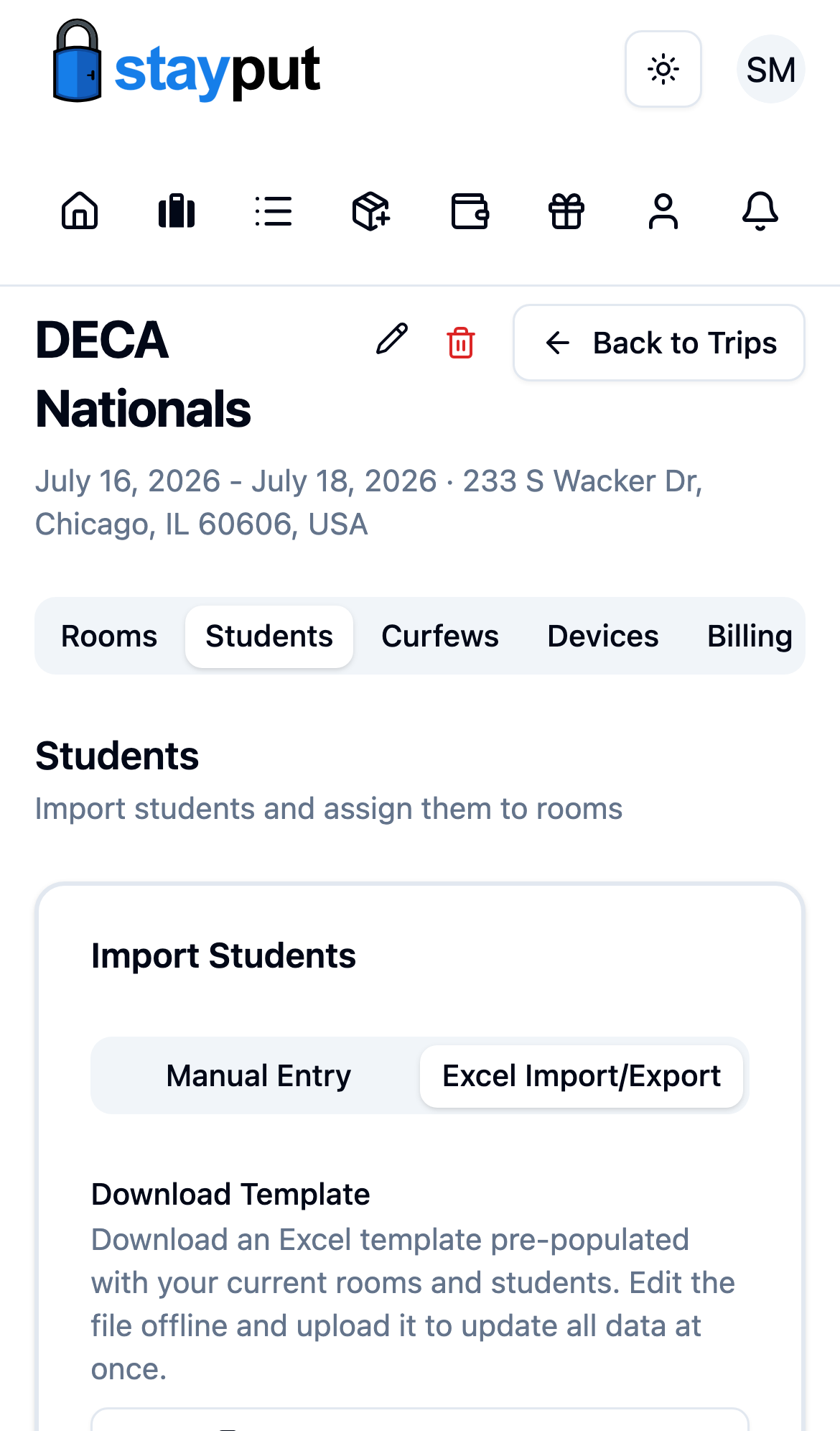
Go to Trips, open the trip, and select the Rooming tab. On an empty trip, select Import Excel. Otherwise open the Excel menu and choose Import Excel… (the menu is available once any unsaved rooming changes are saved or discarded), then switch to the Excel Import/Export tab.
Download the Template
Select Download Excel Template (or Download workbook from the Excel menu). It comes pre-filled with the trip’s current rooms and students, so editing an existing roster is just a matter of updating the downloaded file. Requires Office 365 or Excel 2021+ (it uses live formulas to check room capacity); StayPut recommends a maximum of 300 students per trip.
Edit the Spreadsheet
The template has two sheets:
- Room Configuration — one row per room, with Room Name and Capacity columns. Two optional columns follow: Group (for example Boys, Girls, or a team name) and Student room? (Yes/No) — set No for chaperone or adult rooms so they don’t count toward student capacity. Leave both blank if you don’t use them.
- Students — one row per student, with Student Name, Notes, a Room Assignment dropdown that lists the rooms from the Room Configuration sheet, and an optional Group. Leave Room Assignment blank for an unassigned student. Groups never restrict who can share a room. A live Room Overview on the right side of the Students sheet shows each room’s current headcount and flags rooms that are over capacity.
Add, remove, or edit rows in either sheet, then save the file.
Upload the File
Back in the Excel Import/Export panel, drag the edited file into Upload Excel File (or select it manually). Files must be .xlsx and under 10 MB.
Review and Confirm
StayPut shows a preview of what will change — rooms and students to add, update, or delete — plus any warnings, such as students who’ll be auto-unassigned because their room was removed from the spreadsheet. Select Confirm Import to apply it, or Cancel to back out without changing anything.