Create a Trip
Set up a new overnight trip with dates, location, and room assignments.
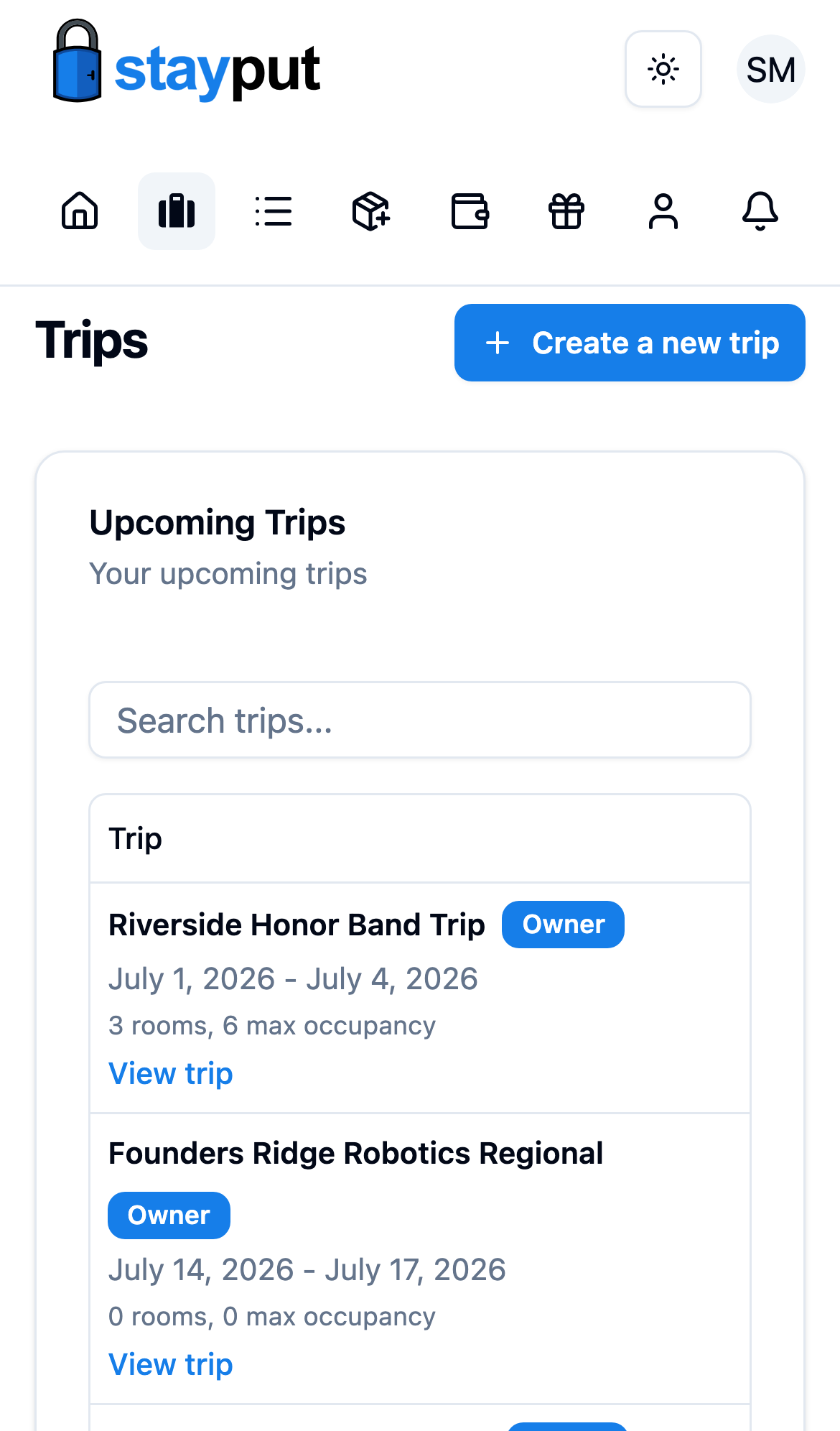
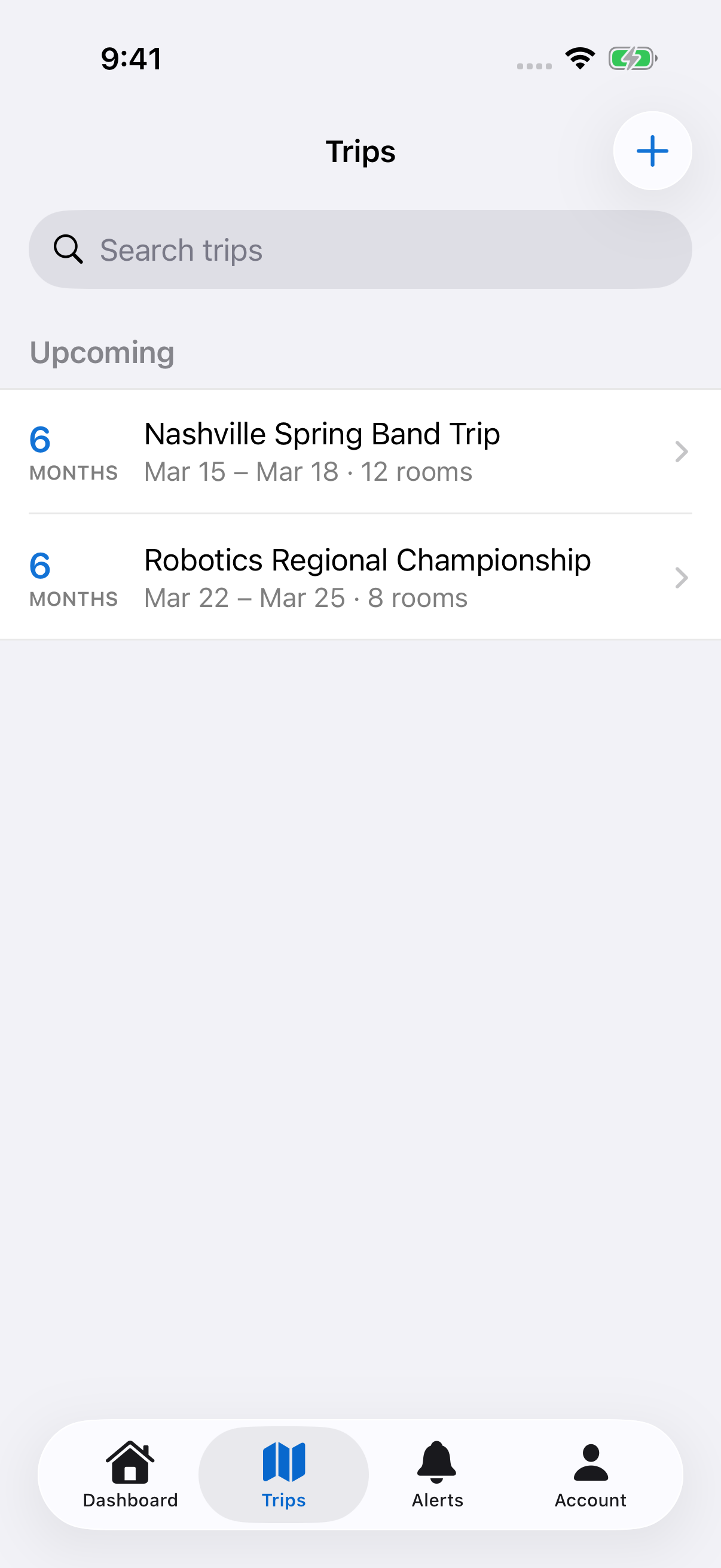
Select New Trip at the top of the sidebar (on a phone, open Trips and select New Trip).
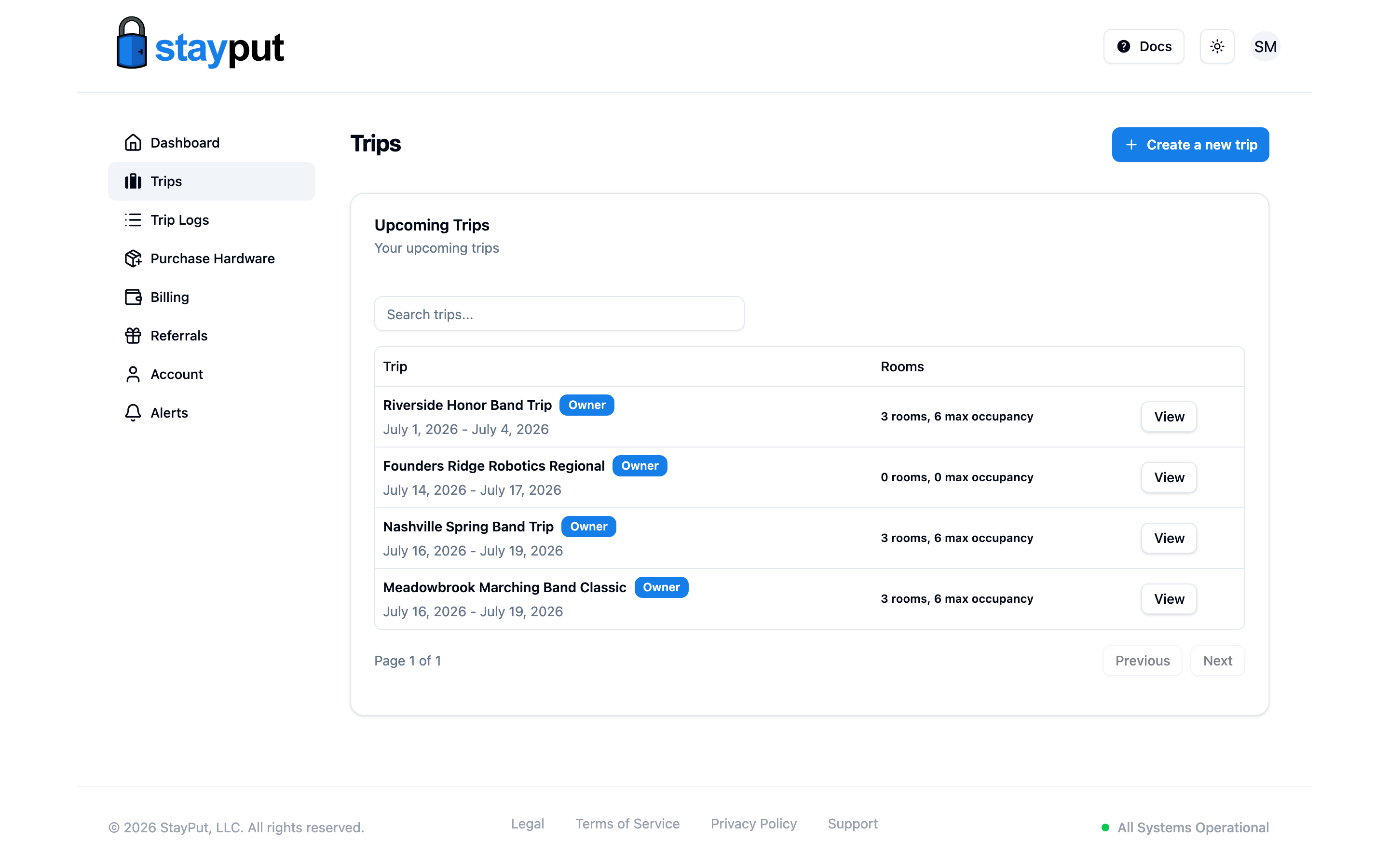
Enter Trip Information
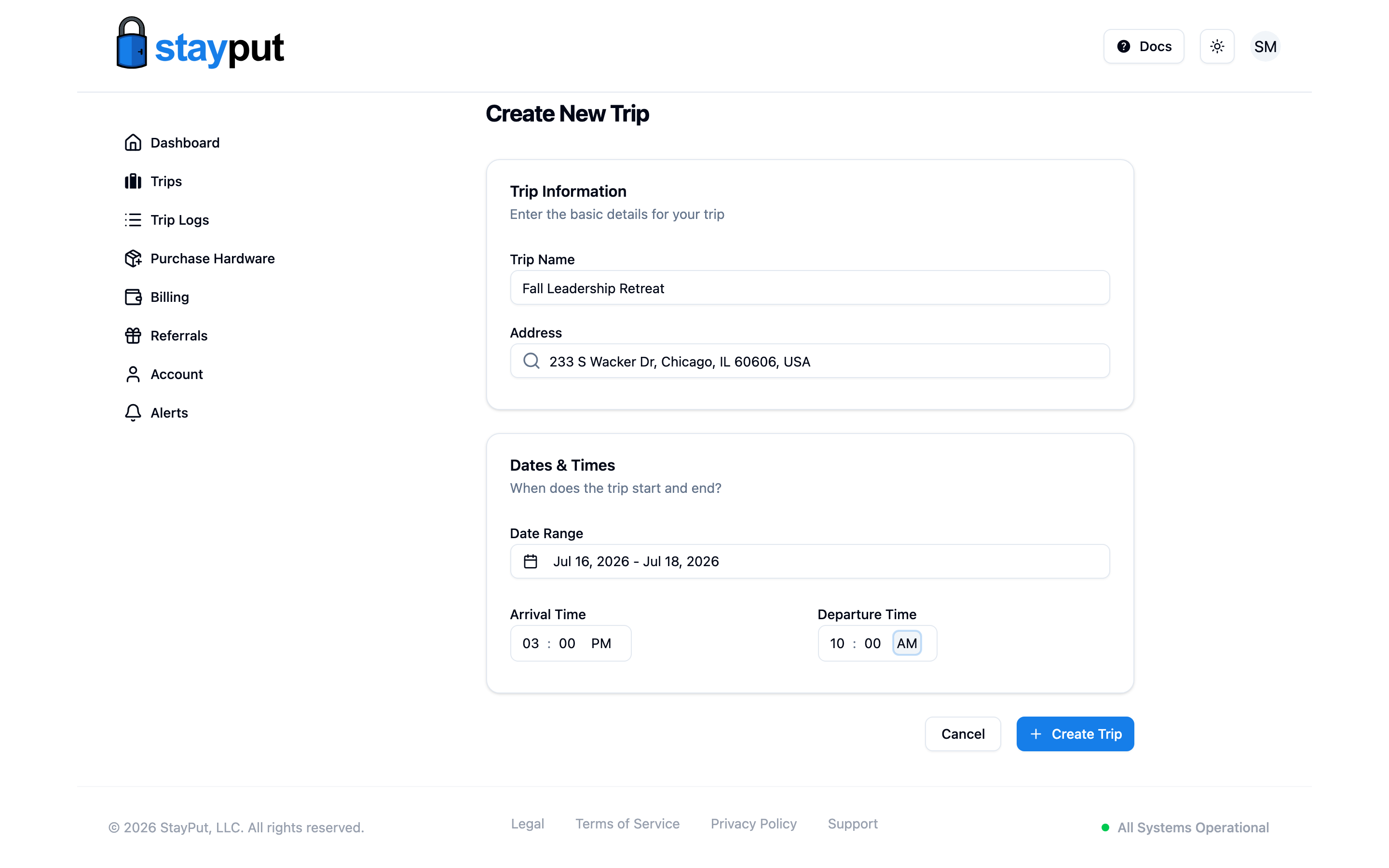
Give the trip a Trip Name (e.g. “Spring Break 2027”) and start typing the hotel or venue Address. Pick the matching result from the autocomplete list — StayPut uses it to look up the trip’s timezone, so an address must be selected, not just typed.
Set Dates
Open Dates and pick the arrival and departure dates on the calendar. Trip dates must be in the future, and departure must come after arrival. StayPut uses noon in the trip’s timezone for monitoring boundaries — you don’t need to enter times.
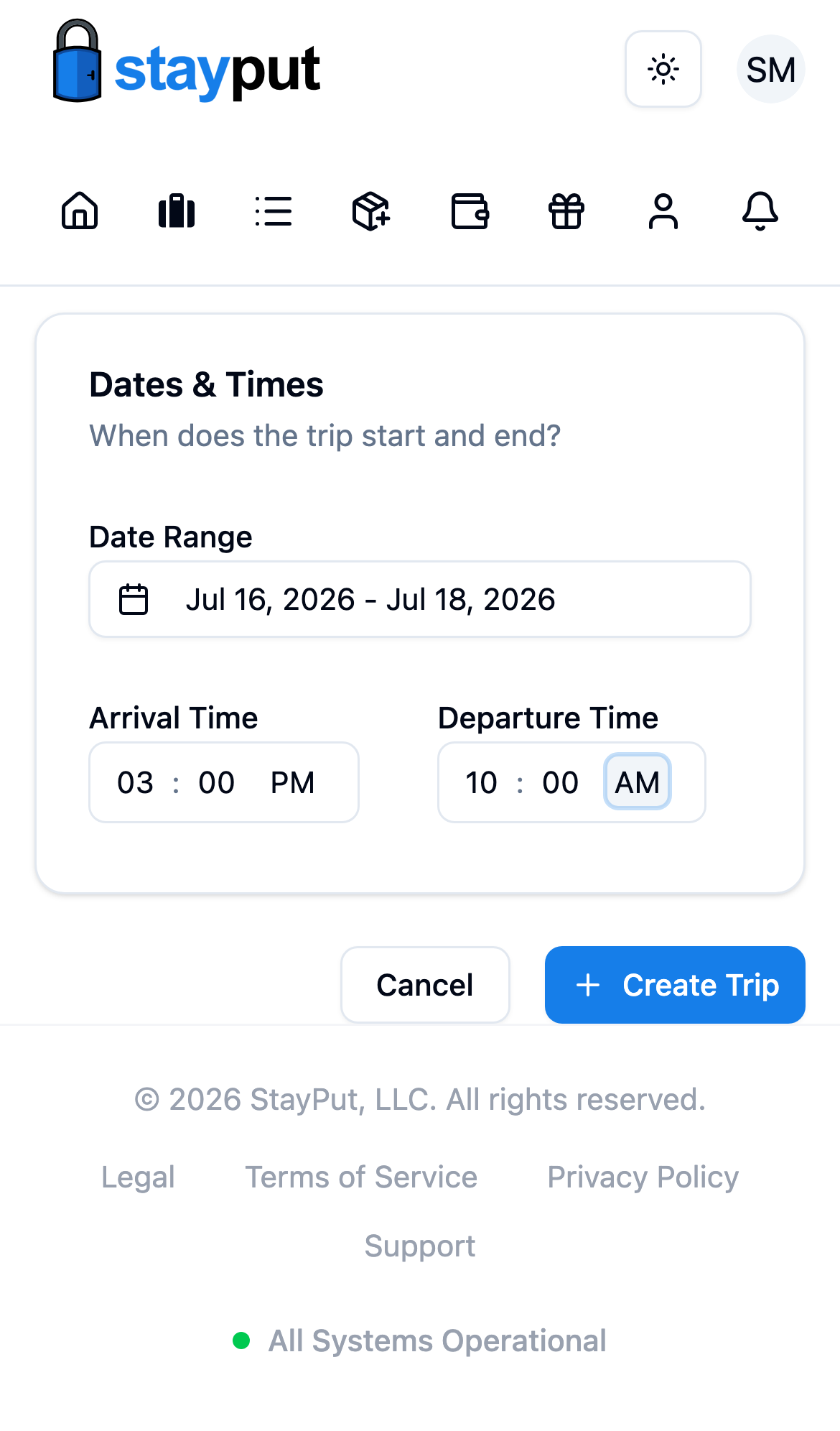
Create the Trip
Select Create Trip. The new trip starts with no rooms, students, or curfews, and StayPut walks you through the remaining setup steps — Room Plan, Curfews, and Chaperones. Each one can be skipped with Skip for Now and finished later from the trip’s tabs.
A new trip starts empty. Add rooms and set occupancy, then import students and assign them to rooms, then set curfew windows for each night. See Adding Rooms and Occupancy to continue setup.