How to Add Chaperones & Planners
Invite chaperones and planners who can view trip activity and receive alerts.
Invite other adults to a trip so they can help supervise and get their own alerts — without sharing your login. Chaperone invites give each person their own account access, scoped to what their role needs.
Only the trip owner or a planner can send invites.
Open the Team Tab
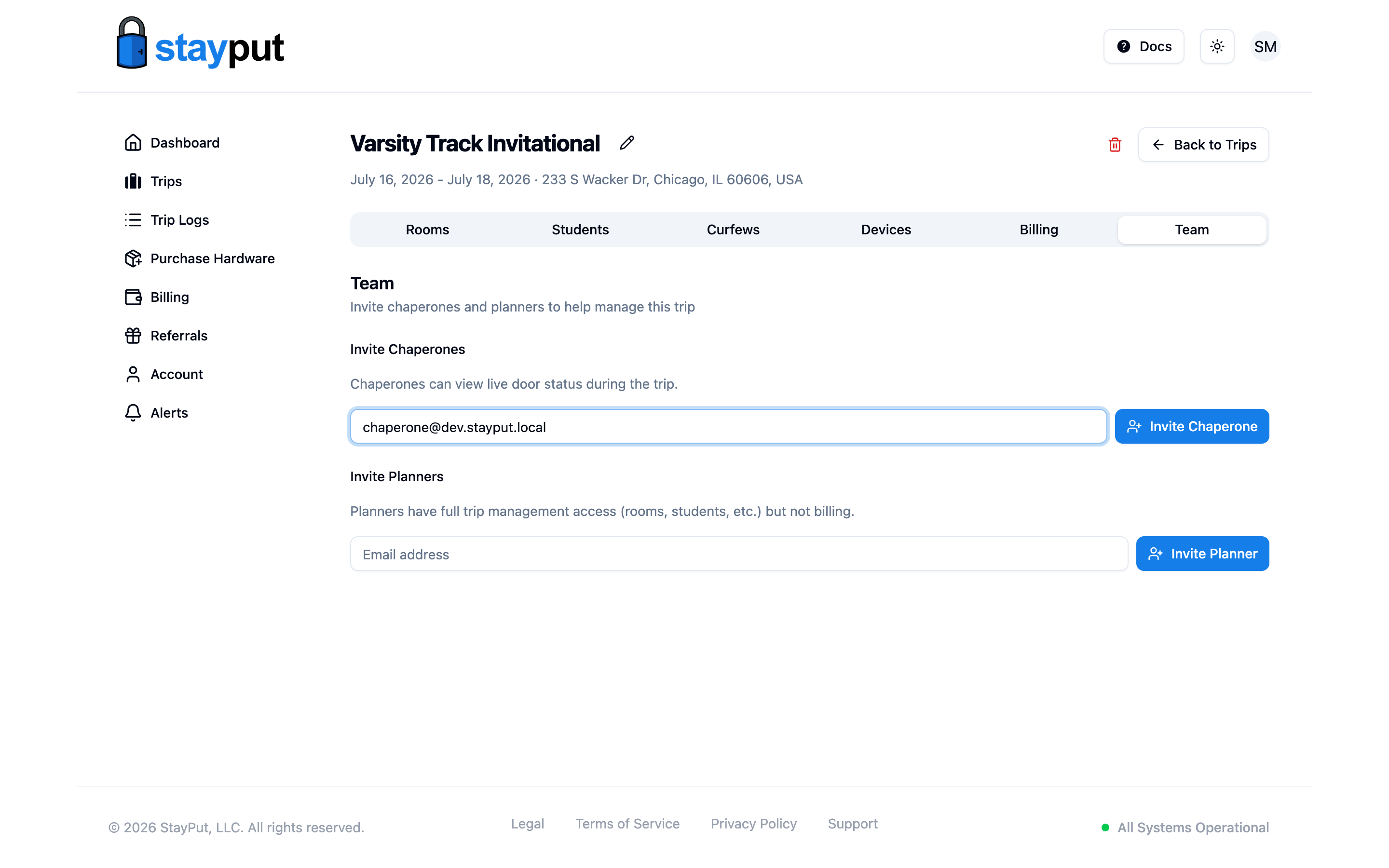
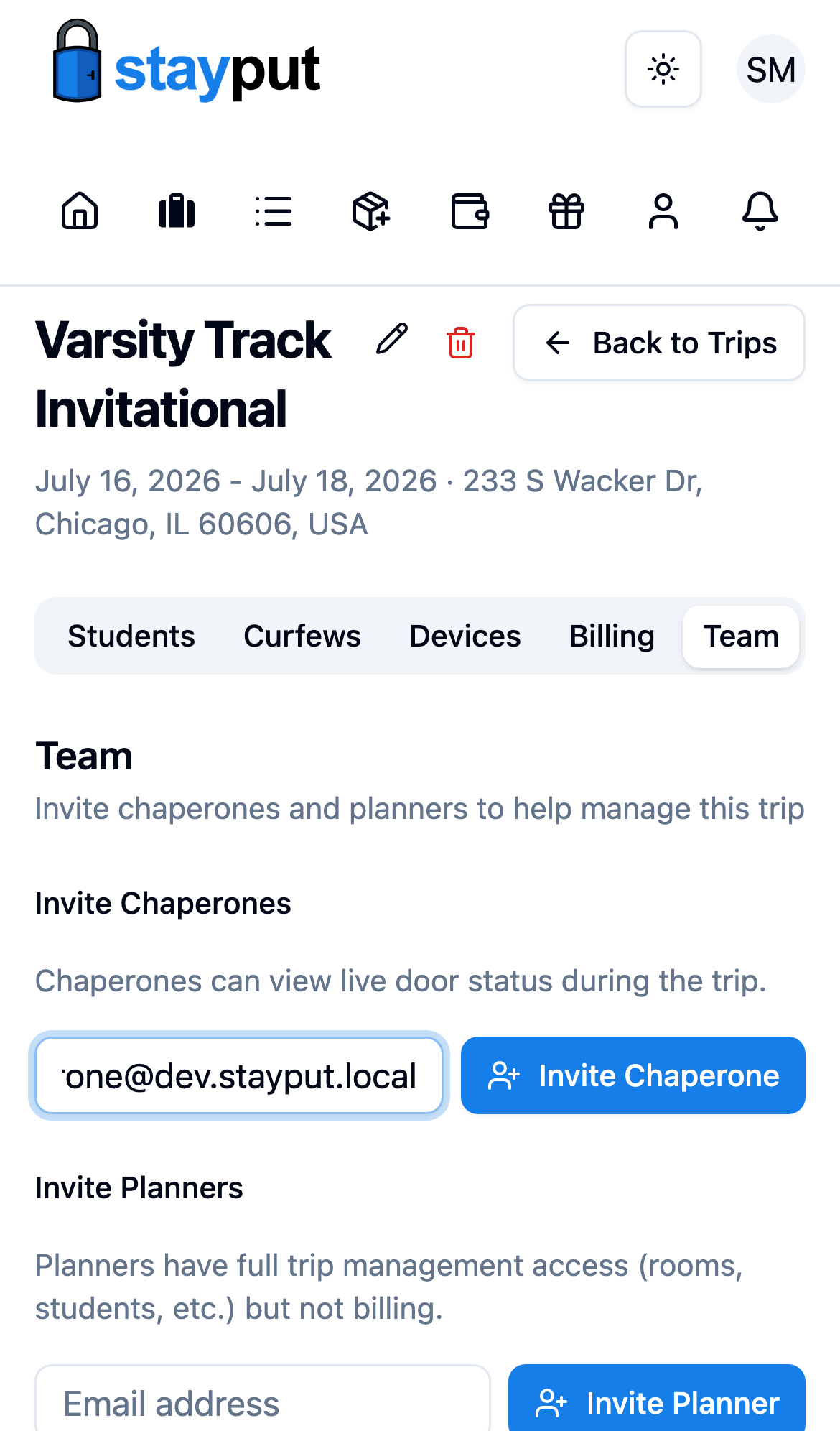
Go to Trips, open the trip, and select the Team tab.
Invite a Chaperone
At the top of the tab, enter an email address, leave the role set to Chaperone, and select Send Invite. Chaperones can view live door status during the trip and receive trip alerts, but can’t change rooms, students, curfews, or billing.
Invite a Planner (optional)
Use the same form, but switch the role to Planner before selecting Send Invite. Planners have full trip management access — rooms, students, curfews, and team — but not billing.
Manage the Team
Everyone on the trip is listed below the invite form with their role; outstanding invites show Pending invite. Use Remove to take someone off the trip, or Revoke to cancel a pending invite.
A chaperone’s view is intentionally simple: on trip days, they see live door and gateway status for the rooms on the trip; before the trip starts, they just see a “coming up soon” message. This keeps the focus on supporting supervision in the moment, not managing setup.