How to Add a Gateway to a Trip
Assign a gateway to a trip so door sensors can report events.
Assign your gateway (hub) to a trip so its door sensors can report to the dashboard. You do this once per trip, from the trip’s Hardware tab.
You need a gateway. If you don’t have one yet, see How to Purchase Additional Hardware. Only the trip owner or a planner can assign devices.
Open the Trip’s Hardware Tab
Go to Trips, open the trip, and select the Hardware tab.
Select Your Gateway
Under Gateways, open Add a gateway… and pick your gateway from the list (type part of the serial number to search). The list shows gateways purchased with your account that aren’t assigned to this trip yet, and the assignment saves as soon as you pick one.
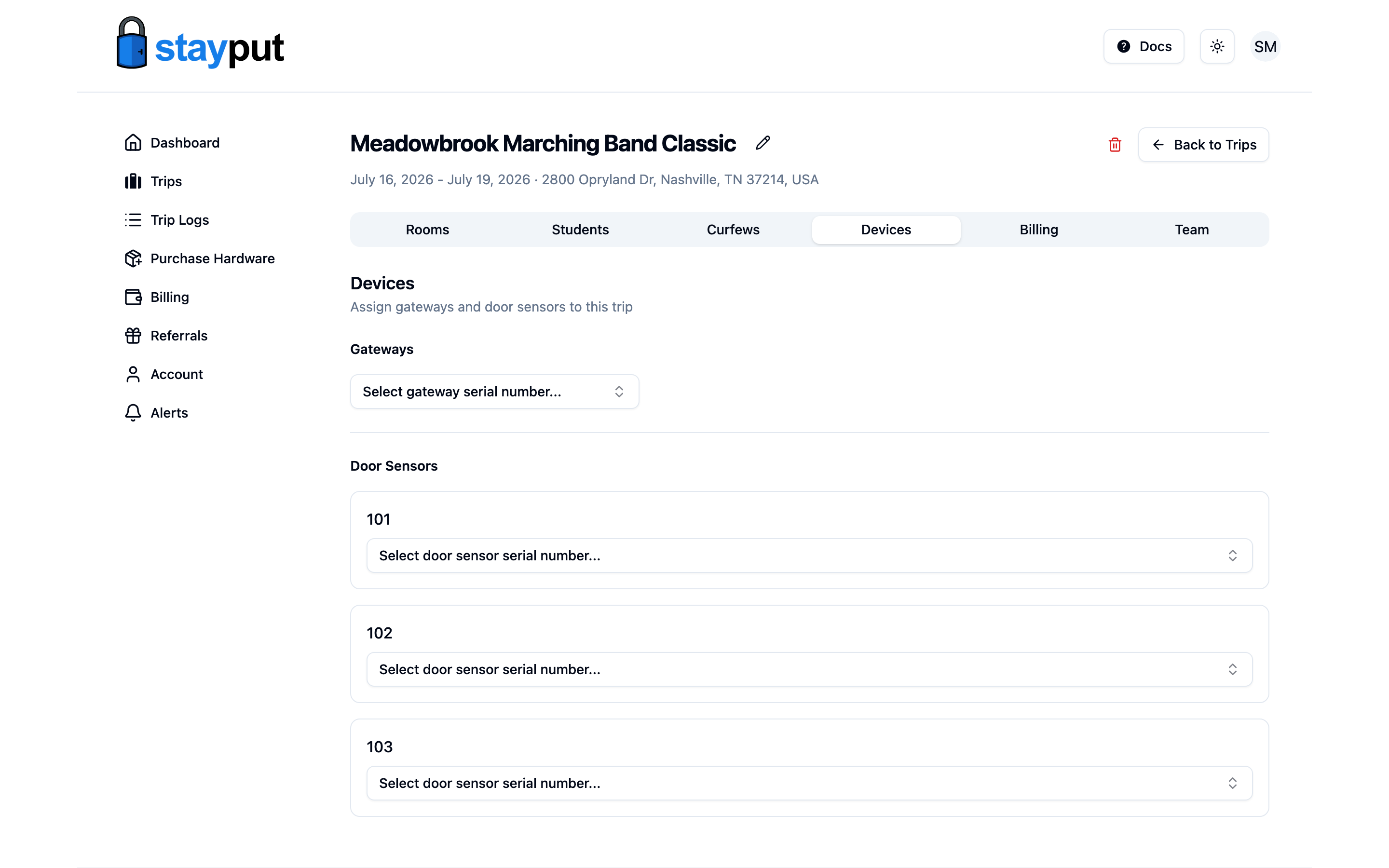
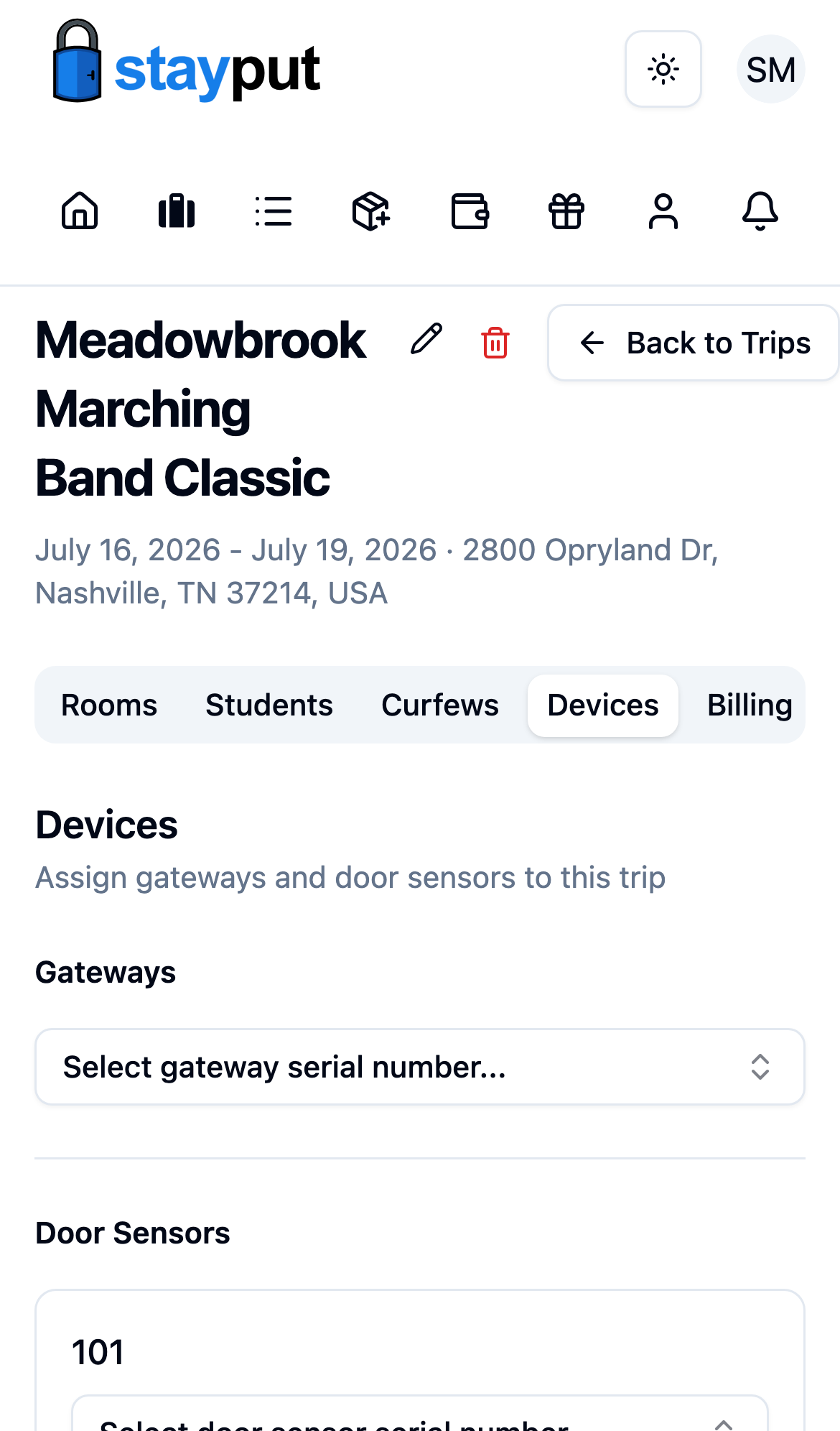
If no gateways are available to pick, you’ll see a text field instead — type the serial number printed on the gateway (plus the last 6 characters of the EUI from its label, required for hardware you didn’t purchase) and select Assign. This also works for a gateway purchased with a different account; see Using Hardware Purchased with a Different Account.
Confirm the Assignment
The gateway appears under Gateways with its serial number. Use Remove if you assigned the wrong one.
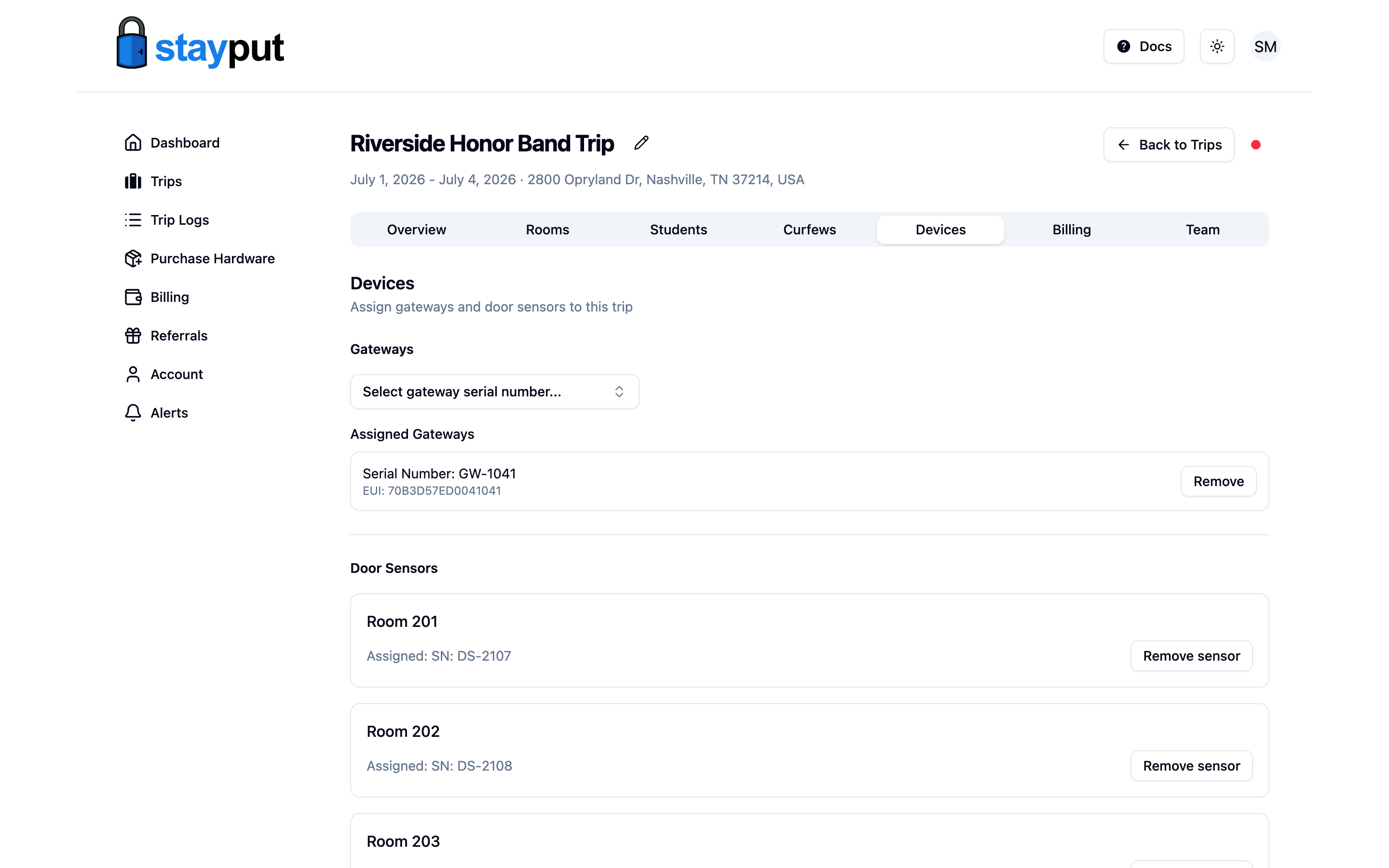
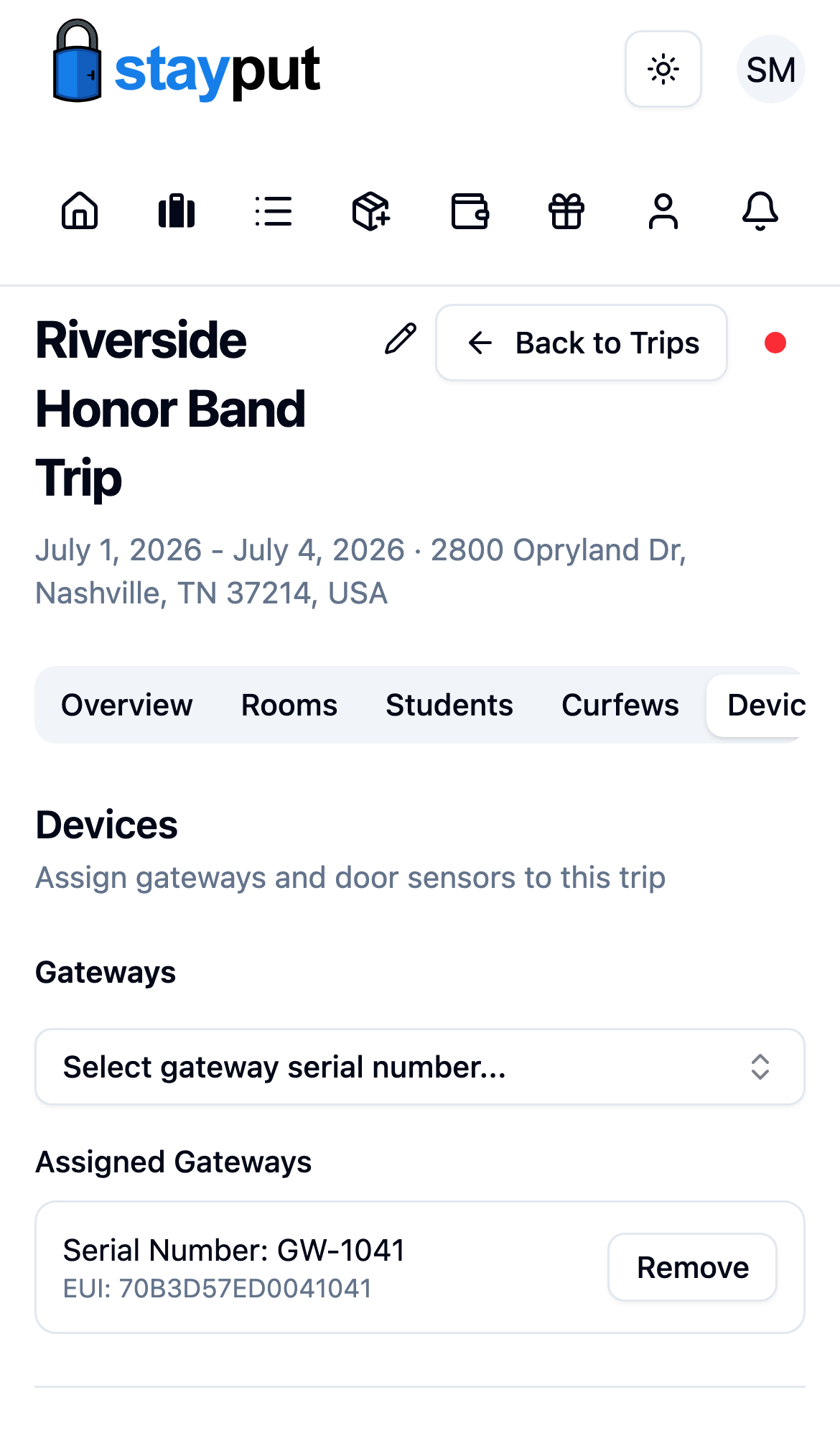
One gateway typically covers several floors of a hotel (up to 200 sensors). For very large layouts or rooms split across wings or towers, assign additional gateways to the same trip.