Add Students & Room Assignments
Add students to a trip and assign them to rooms.
Add the students going on the trip and place each one in a room. Rooms and students share the Rooming tab, so you can create rooms and assign students in the same visit — see Adding Rooms and Occupancy for the room side.
Only the trip owner or a planner can add students or change room assignments.
Open the Rooming Tab
Go to Trips, open the trip, and select the Rooming tab. Switch between the Rooms view (one card per room with its occupants) and the Roster view (one row per student).
Add Students
Select Add Students and paste or type one name per line. To group students as you add them, put the group after a tab or a comma — Jordan Lee⇥Girls or Sam Rivera, Boys — or set a group that applies to every name without one. For a spreadsheet-based import instead, see Importing Students from Excel.
Assign Rooms
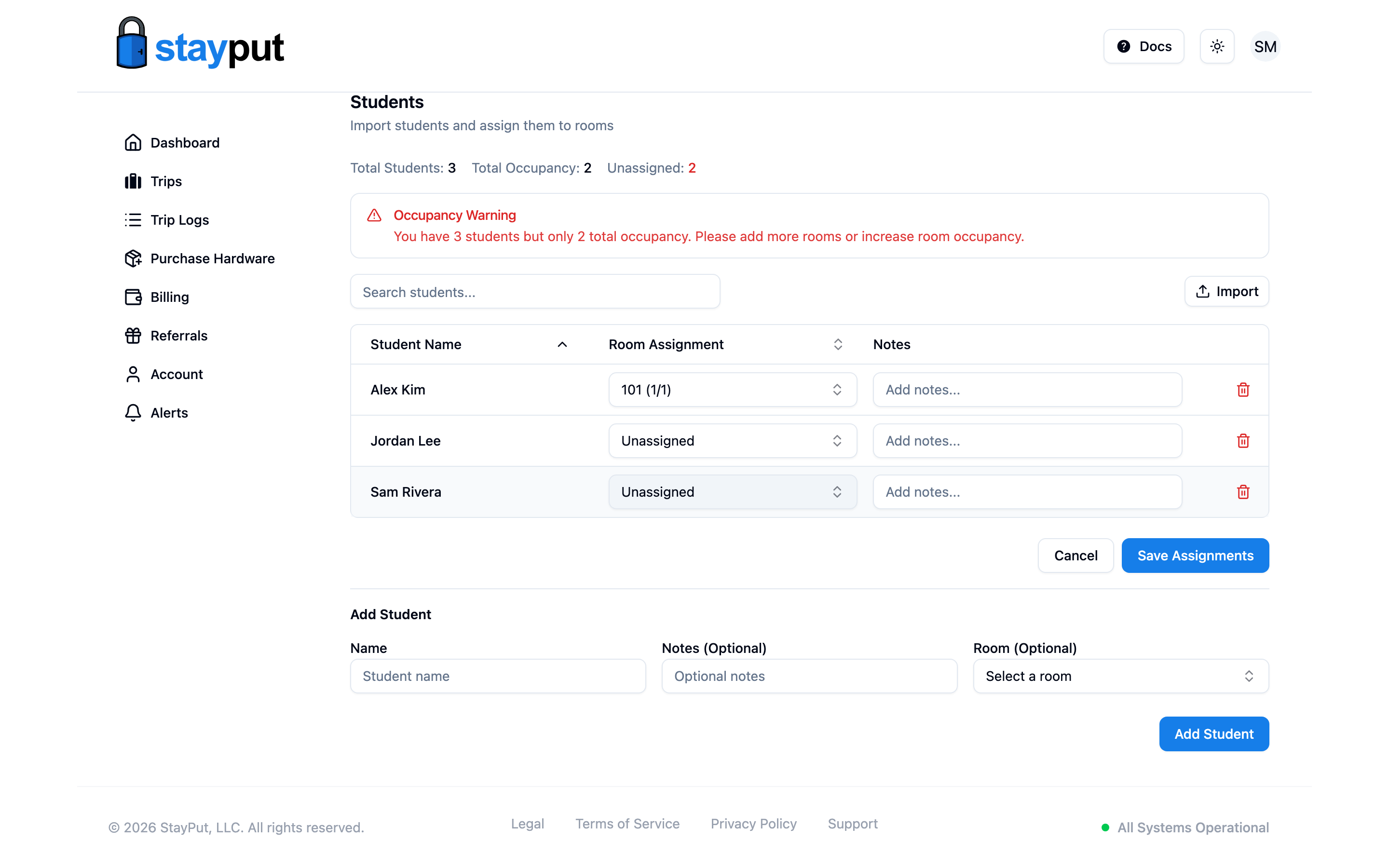
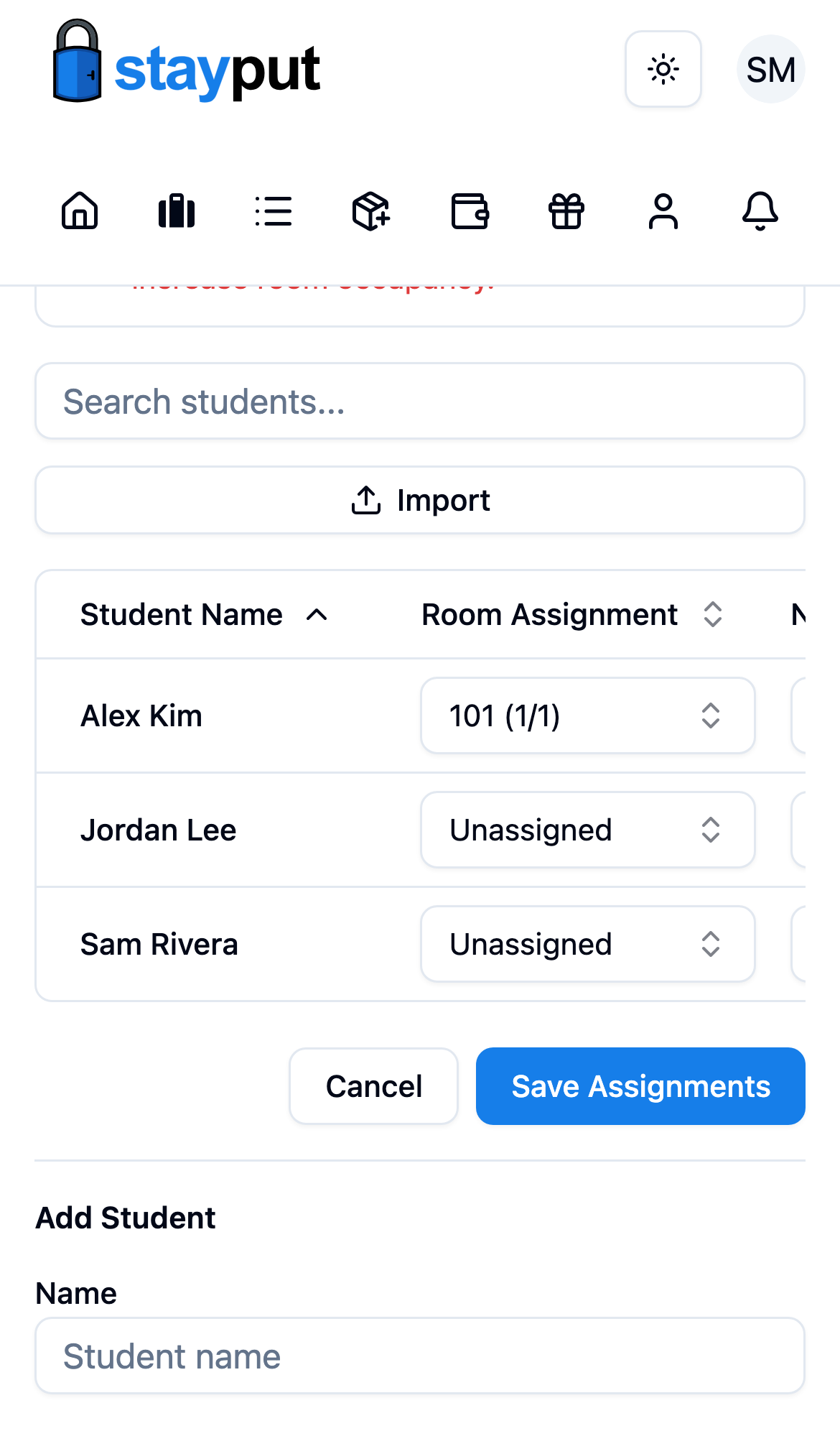
In the Roster view, select the room button on a student’s row and pick a room; rooms with open spaces are listed first. In the Rooms view, use Add Students on a room card to fill it from the unassigned list. To place many students at once, tick their checkboxes and select Assign to Room…, or select Fill Open Spaces… to place every unassigned student into a room with a matching group and review the plan before it applies.
Save
Select Save Changes. If a room ends up with more students than its capacity, the room shows a red warning and saving is blocked until it is resolved. Undo and Redo step through your edits, and Discard Changes reverts to the last saved plan.
The command box understands plain phrases such as move Maria to 1203, swap Ana with Jose, or add Jordan Lee, Sam Rivera to 101. Names and rooms autocomplete as you type, and every command shows a preview before it applies.
Below tablet width the roster is a list; tap a student to edit their name, group, room, and notes in a sheet.