How to Add a Door Sensor to a Trip
Assign door sensors to rooms on a trip for overnight monitoring.
Assign one door sensor to each room on a trip so the dashboard knows which door each sensor is watching.
Create the trip’s rooms first (on the trip’s Rooming tab). The Hardware tab shows “Create rooms first before assigning sensors” until at least one room exists. Only the trip owner or a planner can assign devices.
Open the Trip’s Hardware Tab
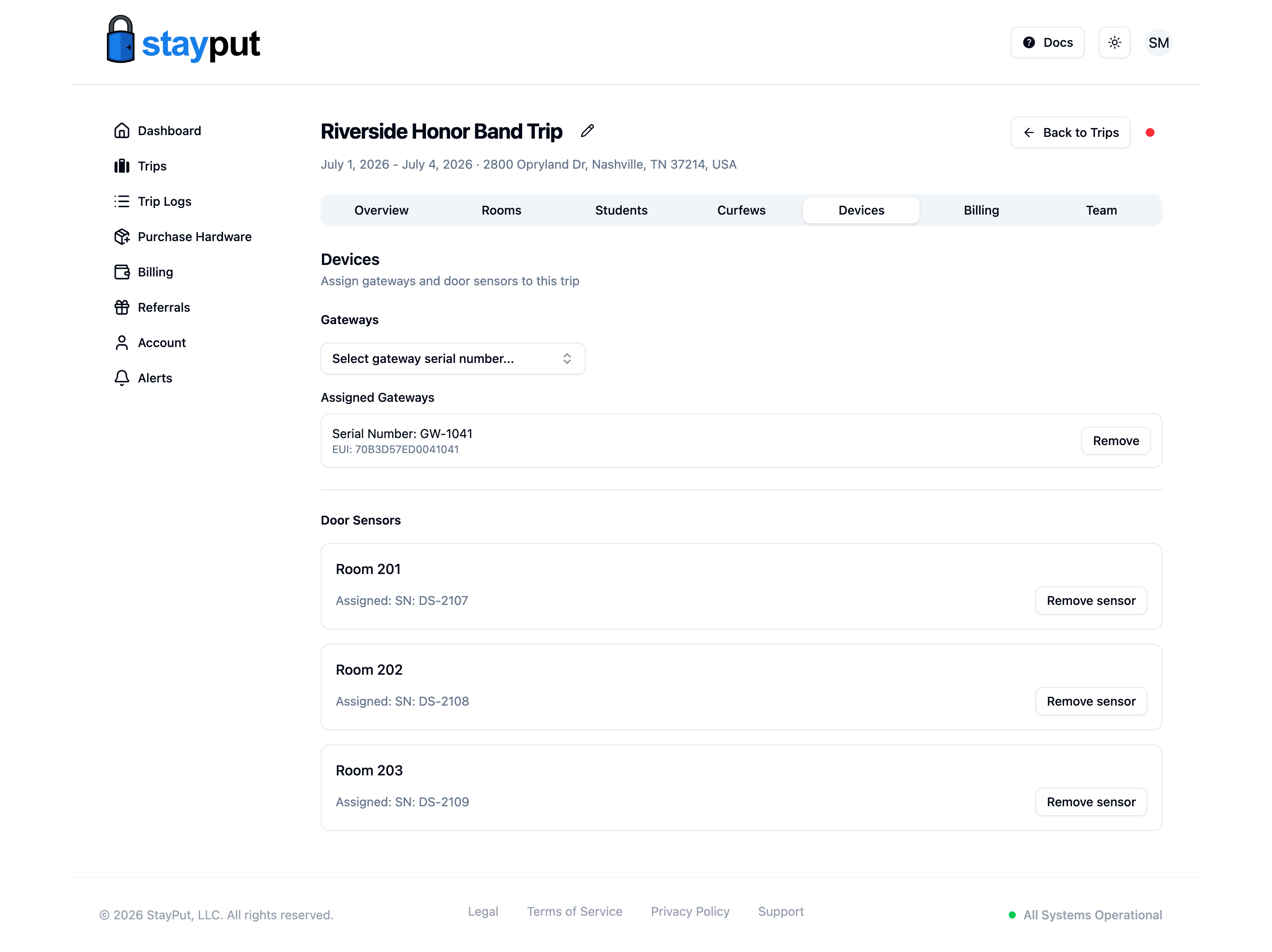
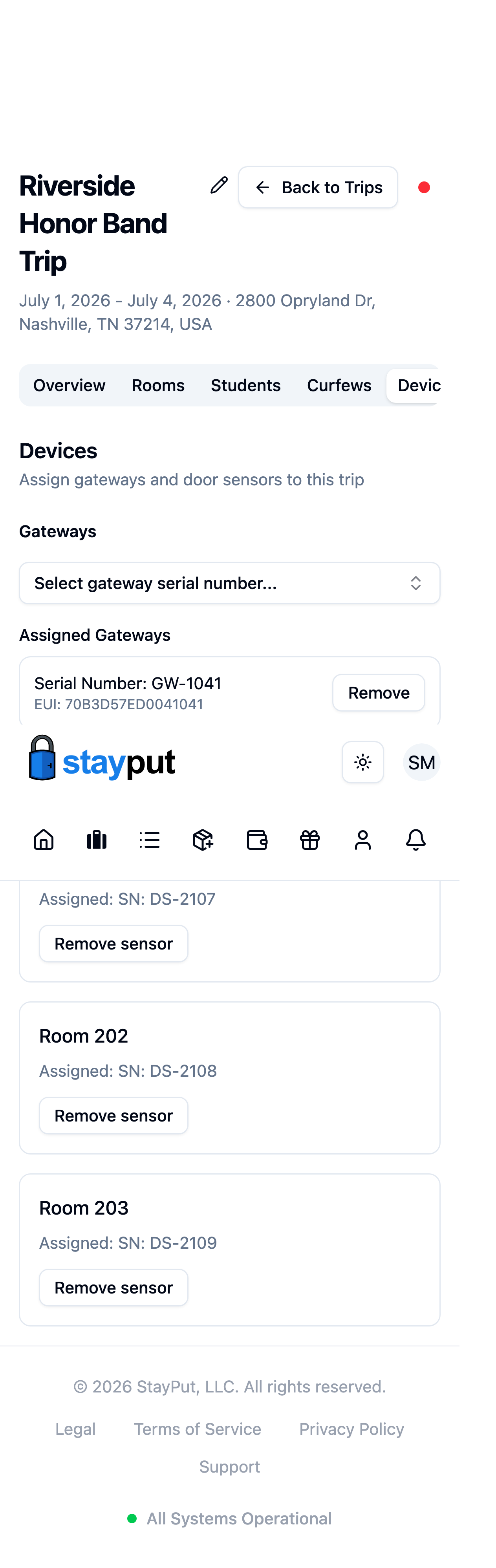
Go to Trips, open the trip, and select the Hardware tab. Scroll to the Door Sensors section — each room has its own row.
Assign a Sensor to Each Room
On a room’s row, open Select sensor… and pick a sensor. The list shows sensors purchased with your account that aren’t assigned to this trip yet, and the assignment saves as soon as you pick one.
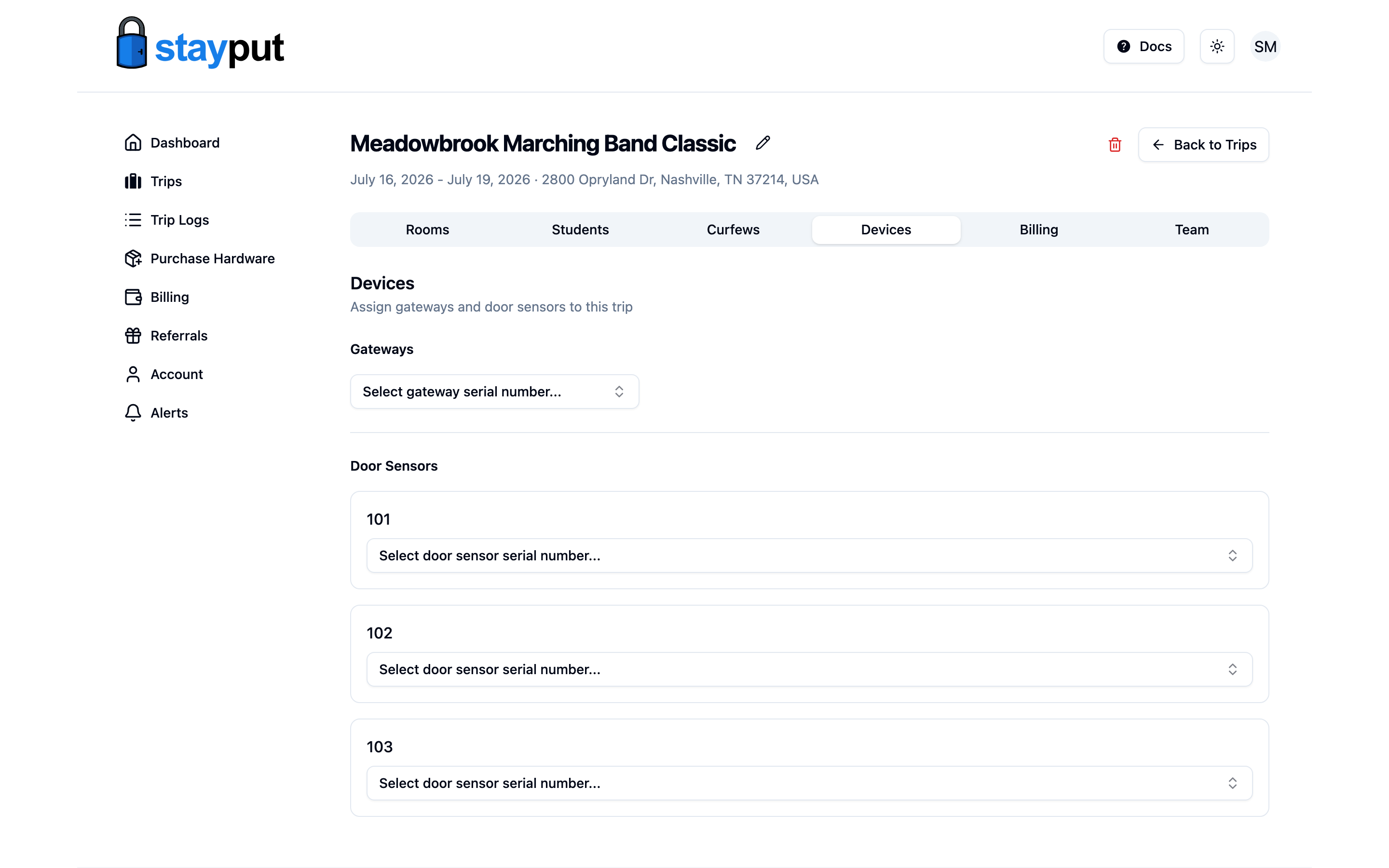
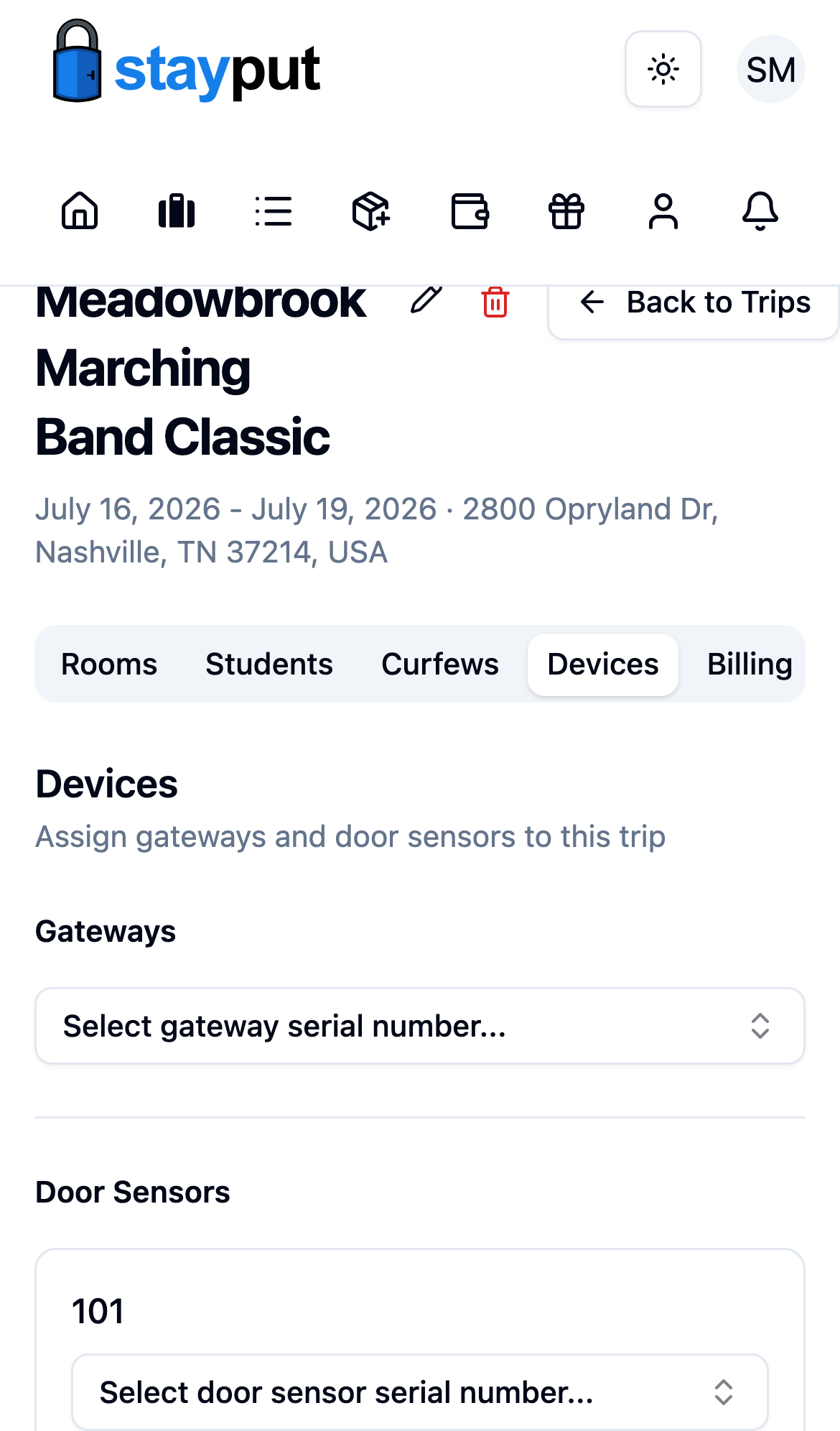
If no sensors are available to pick, you’ll see a text field instead — type the serial number printed on the sensor (plus the last 6 characters of the EUI for hardware you didn’t purchase) and select Assign.
Match each sensor’s serial number to the room it’s physically mounted on. Writing the room number on painter’s tape near the door while you install can help you keep them straight.
Confirm the Assignment
Each paired room shows SN with the sensor’s serial number, and the section header counts how many rooms are paired (for example 3 of 3 paired). Use Remove if you need to swap it.