What if My Door Sensors Aren't Connecting
Troubleshoot door sensors that fail to pair or report to the gateway.
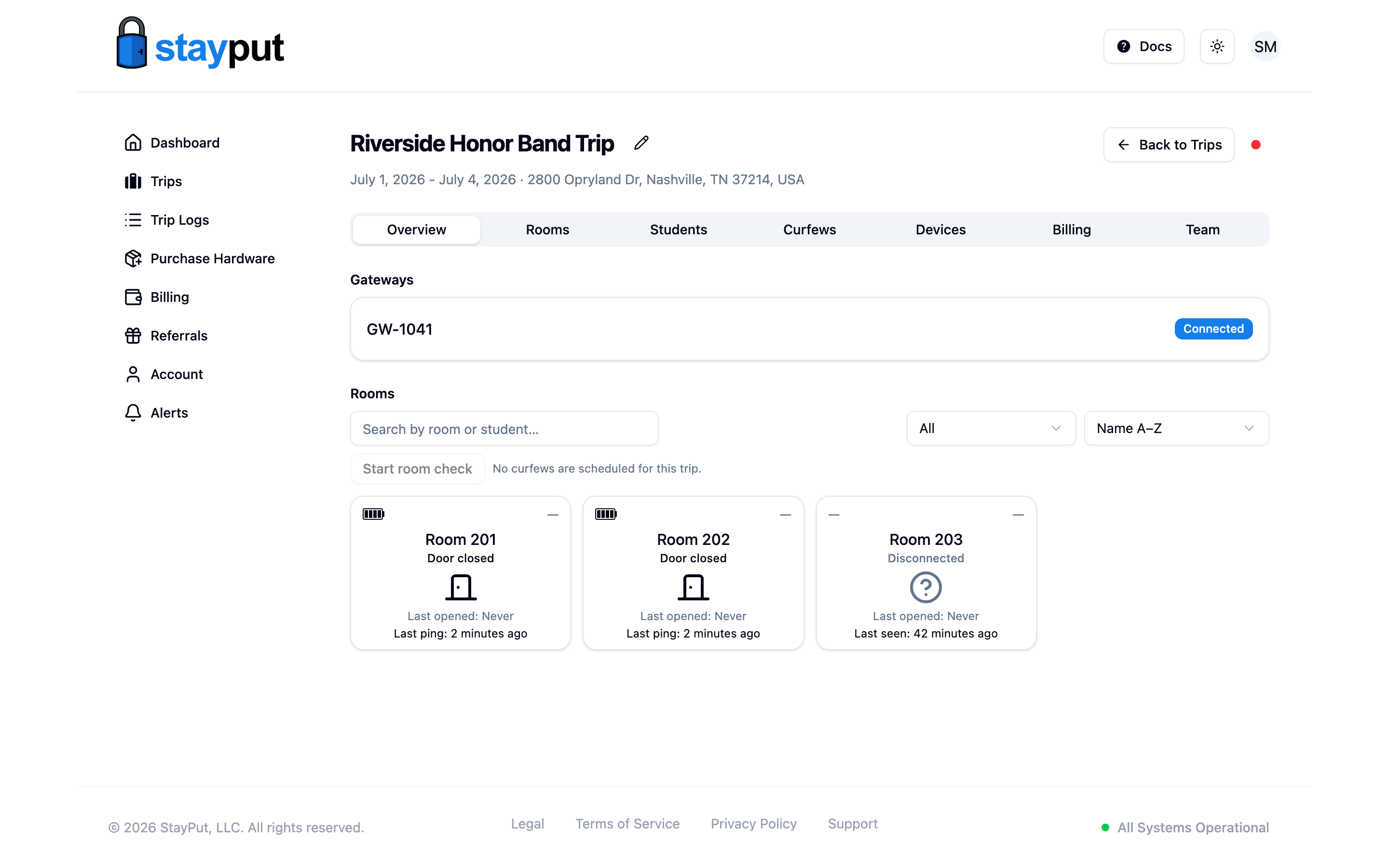
Door sensors check in through the gateway every few minutes. A room shows Not Reporting on the trip’s Overview tab when its sensor hasn’t checked in for roughly 16 minutes — this guide walks through the usual causes.
StayPut also sends a door sensor offline alert once a paired sensor on an active trip has gone 16 minutes without checking in, so you find out before curfew instead of after. You can turn that alert off per trip under Alert settings.
How to Spot a Sensor That Isn’t Reporting
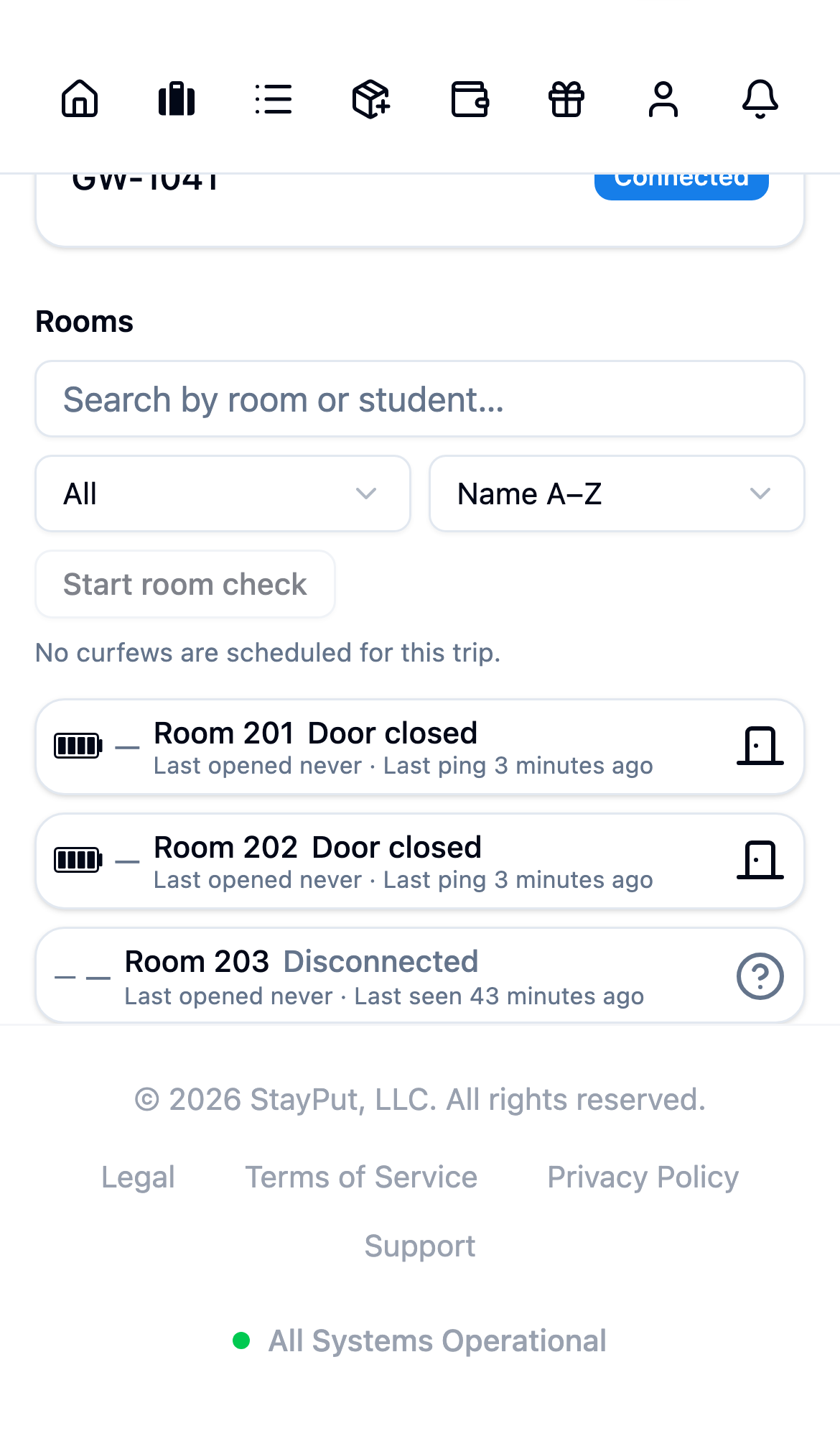
On the Overview tab, a healthy room shows Open or Closed with a recent Last seen time. A room whose sensor has gone quiet shows Not Reporting with how long ago it was last seen, and its battery and signal indicators show a dash. Rooms that need attention are listed first, and a count such as 1 Not Reporting sits above the room cards. On trips with seven or more rooms you can also search and filter the list to Not Reporting to find problem rooms quickly.
Work Through These Checks
Check the gateway first. Sensors report through the gateway, so if the gateway shows Not Reporting, every sensor will go stale together. See How to Tell if My Gateway Is Connected.
Give it a few minutes. Sensors check in periodically. After powering the gateway on or fixing another issue, allow several minutes before expecting rooms to come back online.
Check the distance to the gateway. A sensor that’s too far from the gateway may drop off. Move the gateway to a more central spot (a room mid-hallway on a middle floor reaches the floors above and below it), or add a second gateway for rooms it still can’t reach — separate wings or towers usually need one each.
Confirm the right sensor is assigned to the room. On the trip’s Hardware tab, compare each room’s SN value to the serial number printed on the sensor mounted on that door. A swapped pair looks like one “dead” room and one misreporting room.
Check the frequency versions match. A US915 sensor can only talk to a US915 gateway, and an EU868 sensor to an EU868 gateway. Mixed-frequency hardware will never connect — see Where Is My Hardware Usable?
If a sensor still isn’t reporting after these checks, contact support with the sensor’s serial number and the trip name. A depleted battery can also take a sensor offline; support can confirm the sensor’s last reported battery level.
Do a quick open-and-close test on each door when you install the sensors, well before the curfew window starts. It’s much easier to reposition a gateway at 7 p.m. than at midnight.